

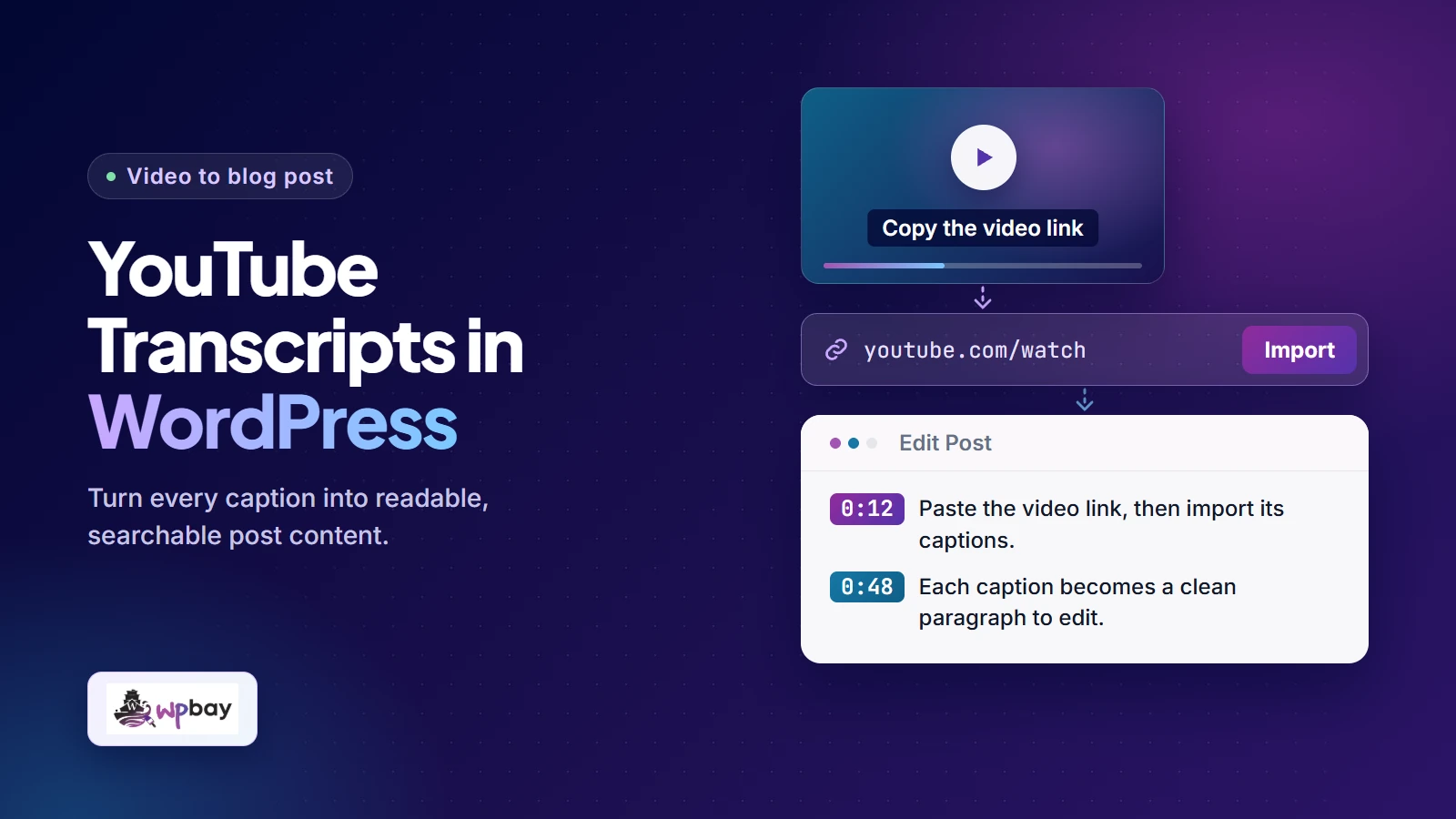
You don’t need a YouTube caption scraper for WordPress to publish the transcript of a video you manage. In YouTube Studio, open the video’s Subtitles screen, choose the published track in the language you want, and download it. Turn the timed file into readable paragraphs and paste them below a YouTube block in a WordPress draft, then add a credit link to the video. First, make sure you can edit the video’s subtitles and have permission to publish the text. If the video has no usable track, an authorized editor can write the transcript from the source recording and publish it directly in WordPress. If viewers also need captions in the player, upload them to Studio separately.
If you want a plugin, the main options work differently. CodeRevolution’s standalone YouTube Caption Scraper fills a post that is already open in the editor. Its Youtubomatic plugin creates drafts from saved rules. Disclosure: WPBay publishes this article and lists both plugins, along with Captionwright Pro by Karelia Labs, which is covered in the comparison below. Whichever tool you choose, someone still has to check the caption text against playback. Neither CodeRevolution plugin is recommended here for automated caption retrieval, because nothing published so far shows that YouTube permits the way either one retrieves captions.
Check caption availability and choose a language
To see what viewers see, use Show transcript in the description on the watch page. It appears on captioned videos, and selecting a line jumps playback to that point. To choose the track you’ll actually export, open Studio. Go to Subtitles, select the video, and read each language row. Note whether each language came from an uploaded file, automatic captions or a translation, and whether the row is published or only holds unpublished edits. Write down the video ID, the language you picked and where the track came from, because the transcript heading and credit depend on them.
Here’s a hypothetical bilingual example. A tutorial is spoken in English. Studio shows two published rows: English, uploaded from a file someone reviewed, and Spanish, translated from that English file. For the English post, export the English row. For a Spanish post, have someone check the Spanish track against the English audio before you publish. The transcript heading should say “translated from English” and whether a person reviewed the translation. Whoever uploaded the tracks can confirm where each one came from. Studio’s row labels show the method, but they won’t tell you whether anyone reviewed the text.
Viewers can also pick a language in the player that the channel never supplied. YouTube’s Auto-translate option translates captions on demand, so a language in the player menu doesn’t prove there’s a published track you can export. Use the graphic below to check where your language appears before you try to export it.
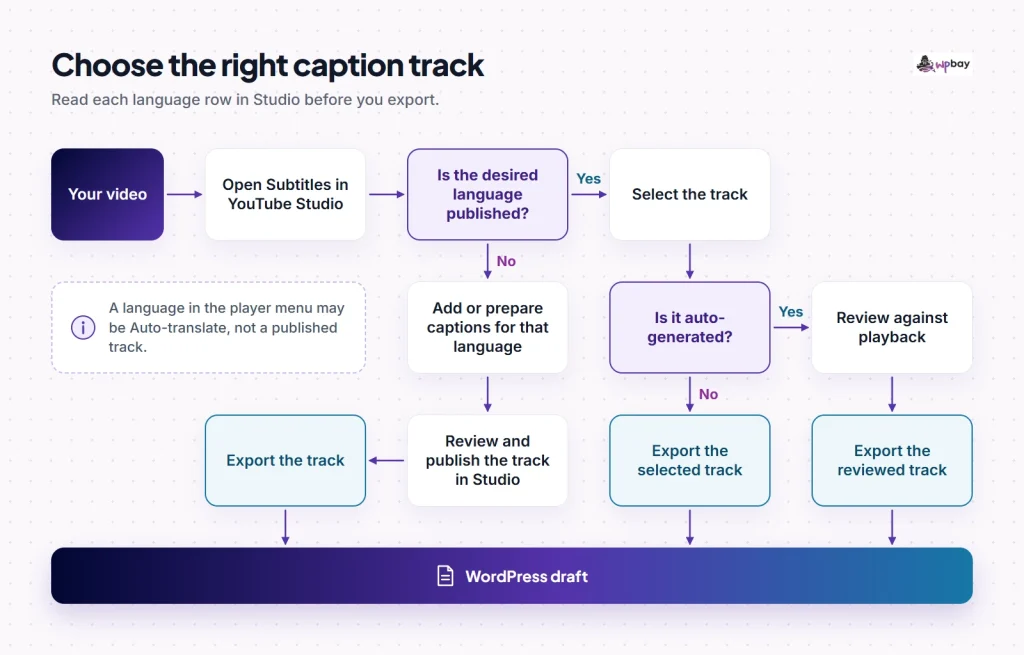
If Studio shows no usable track, check whether YouTube is still processing automatic captions. YouTube says automatic captions can take time to appear. It may not create them at all if the language is unsupported, the audio is poor, the video is very long, the start has a long silence, or speakers or languages overlap. On videos with several audio tracks, automatic captions are created only in the default language. Waiting helps when the video is new and clearly recorded in a supported language. It won’t help in the other cases.
If you can’t wait, write the transcript from the source recording. You can also start from the script, but play it against the recording and add anything the speaker said that isn’t in the script. This text can go straight into the WordPress post, and player captions aren’t affected. If viewers also need timed captions in the player, open Subtitles in Studio, select the video, click Add language, choose the spoken language, then click Add in the Subtitles column. YouTube’s Add subtitles & captions instructions offer three methods, and they save differently:
- Upload file: choose with or without timing, select the file, then save. Check the saved track against playback afterward.
- Auto-sync: paste or upload the transcript and let YouTube set the timings. According to YouTube’s instructions, the track publishes automatically when processing finishes, so proofread the text before you submit it and inspect the published track afterward. YouTube advises against Auto-sync for videos over an hour long or with poor audio, and the text has to be in the same supported language as the speech.
- Type manually: enter the captions while the video plays, review them, then click Publish.
Download YouTube captions and add them to WordPress
You need a Studio role that can edit the video’s subtitles. YouTube’s Subtitle Editor permission covers this, but only on videos that have a video language set. Having the role doesn’t give you permission to republish the text.
- In Studio, open Subtitles, select the video, and click Edit next to the language you chose. Then choose Options and Download subtitles. If the track is automatic and you want the player fixed too, use Duplicate and edit, correct the text, and click Publish before you download, so the file you export is the revised track. If Studio warns that a draft already exists and offers Continue, continuing overwrites that draft, so check first whether a colleague left unpublished edits.
- Save the file unchanged, using a pattern such as
VIDEO_ID_en_reviewed.vtt.VIDEO_IDis the 11-character ID from the watch URL, and the extension should match whatever Studio gave you. Keep this original export so you can compare it with the next revision. - Make a copy of the export and do your cleanup in the copy (details follow this list).
- In WordPress, create or open a draft. Add a short introduction, then a YouTube block. Paste the watch URL and click Embed.
- Below the embed, add a Heading block reading “Transcript”, followed by the language and any edit or translation note. Add the cleaned text as Paragraph blocks, with subheadings for long videos.
- Finish with a credit line: the video title, the channel name and a descriptive link to the watch page.
Open the downloaded file in a plain-text editor and check its extension. In SRT (.srt), delete each cue number and its timing line. In SBV (.sbv), each cue starts with a start and end time separated by a comma, so delete those lines. WebVTT (.vtt) needs more care, because the WebVTT format can hold more than timings. Delete the WEBVTT header, any NOTE, STYLE or REGION blocks, cue identifiers above timing lines, and the timing lines along with any position settings after them. Then remove inline markup such as <c> tags (including classed ones like <c.yellow>), <i>, <b>, <u> and <lang> spans, and inline timestamps such as <00:00:04.120>. Keep the words inside those spans. Turn character references such as & back into the characters they stand for.
The timings and tags come out in seconds. These points take judgment:
- Join sentences across cues. Read for meaning rather than following the line breaks, and start a new paragraph when the topic or speaker changes.
- Overlapping cues can mean two people talking at once. Keep both lines, label each speaker, and put them in the order the audio makes clear.
- Automatic tracks sometimes repeat a phrase across consecutive cues. Before you delete what looks like a duplicate, play that moment, because speakers do repeat themselves.
- Turn voice tags like
<v Sam>into plain speaker labels instead of deleting them. Where a track has no voice tags, add labels when the speaker changes. - Ruby annotations (
<ruby>with<rt>), used for readings in languages such as Japanese, need a decision. Either keep the base text and put the reading in parentheses, or drop the reading if your audience doesn’t need it. Don’t delete the base text.
In this sample WebVTT file (hypothetical, not a real export), Sam’s first sentence spans three cues:
WEBVTT

NOTE exported from Studio

intro-1
00:00:01.000 --> 00:00:03.500
<v Sam>so today were going to set up

00:00:03.500 --> 00:00:06.200
<v Sam>the import rule in word press and

00:00:06.200 --> 00:00:08.900
<v Sam>uh check it on staging first

00:00:09.100 --> 00:00:11.000
<v Priya>Should we back up the site before that?
The header, the NOTE block, the intro-1 identifier and the timings come out. “So” and “uh” go as filler, “word press” becomes WordPress, “were” gets its apostrophe back, and the voice tags become speaker labels. Keep any qualifications the speaker actually made. If Sam had said “probably check it on staging,” the “probably” stays.
Edit and credit the transcript before publishing
Replay every line that contains a name, product term, price, version number or instruction, and compare it with the draft. If the text is a translation, check those items against the original-language track too. YouTube recommends reviewing automatic captions, and these are the details automatic captioning gets wrong most visibly. The W3C’s guidance on transcripts describes a basic transcript as speech plus meaningful non-speech audio, such as “[alarm sounds]” when the alarm matters. A descriptive transcript also includes visual information a reader needs. When a speaker says “click here,” add the name of the setting shown on screen in brackets. W3C also suggests identifying speakers and placing the transcript, or a link to it, near the media.
Here is the edited excerpt from the hypothetical video as it would appear under the embed, with one visual cue added:
Transcript (English, lightly edited for readability)
Sam: Today we’re going to set up the import rule in WordPress and check it on staging first. [On screen: the rule’s Post Status set to Draft.]
Priya: Should we back up the site before that?
Source: “Video title” by Channel Name on YouTube, linked to the watch page.
In the editor, “Transcript” is a Heading block, the edit note sits right beside it, and each speaker turn is its own Paragraph block. The image below shows which parts of a timed caption file make it into the finished post.
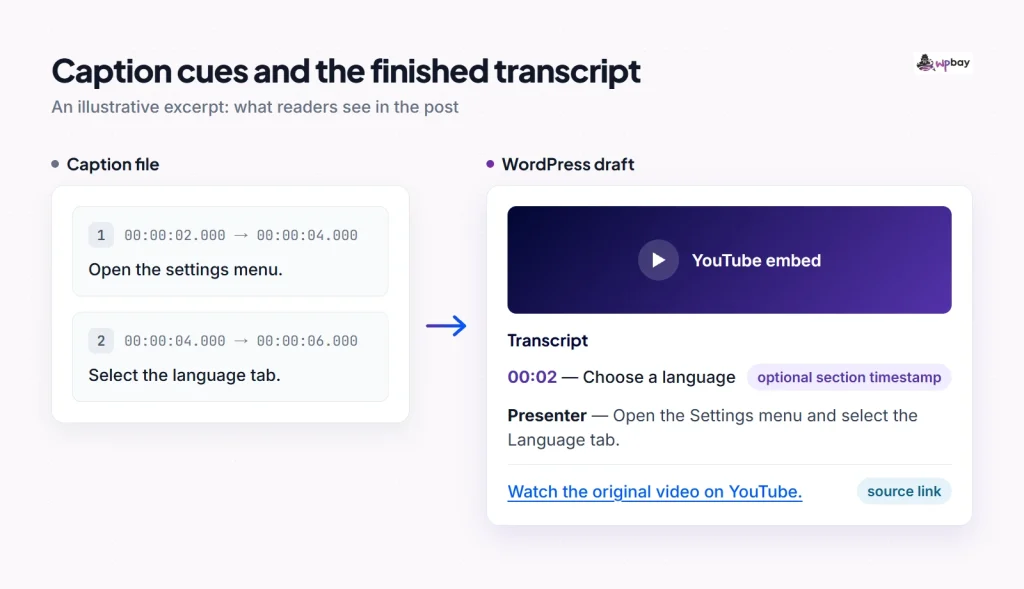
Use “lightly edited for readability” if you removed filler or corrected transcription errors. For a translation, name the source language and say whether a person reviewed it. Keep the edit note beside the heading so readers who jump straight to the text still see it. Viewers can turn on captions in the player, including in an embedded player, but the embed adds no words to your post body. The transcript is in Heading and Paragraph blocks, so readers can search and quote it. The next editor can also fix a misheard word in the block editor without touching a caption file.
For a long tutorial, start with a few plain timestamps at section breaks, such as “04:12, setting up the rule”. If readers need to jump straight to a step, open the watch page on desktop and use Share with Start at checked to copy a link that opens YouTube at that moment. To move the embedded player itself, a small script using the IFrame Player API’s seekTo can jump to a time given in seconds. You only need a timed cue file if you want every line clickable and highlighted during playback.
For a video on another channel, you need an authorized copy of the captions and permission to publish the words. YouTube’s Terms of Service allow use of the embeddable player and say uploaders keep ownership of their content. They also restrict reproduction, distribution and automated access, so embedding a video doesn’t make its caption text yours to copy. Ask the rights holder, who may not be the uploader, for the caption file. Get explicit permission to publish it, and to edit or translate it if you plan to. Receiving a file isn’t the same as receiving that permission. The other common route is a license such as Creative Commons CC BY. The CC BY 3.0 deed requires credit, a link to the license and an indication of changes. A credit line might read: “Transcript of ‘Video title‘ by Channel Name (linked to the watch page), licensed under CC BY 3.0 (linked to the deed). Filler removed and terms corrected for readability.” Check that the license covers the words you’re publishing, not just the footage.
Preview the draft on a phone and on a desktop. Play the embed, open any timestamp links, check that the credit link opens the right video, and confirm the heading names the right language. If the player fails, check the video’s visibility and the Allow embedding setting in Studio. A watch-page link works when embedding is off, but private videos, regional blocks and age restrictions still apply on YouTube itself. Open the watch link while signed out and note any sign-in or age requirement beside it. If you have the right to publish the transcript, keep it up, because it stays readable when the player doesn’t.
Reuse the layout for every new video
For a weekly upload, most of the repeated work is the layout, not the captions. Build the post once: introduction placeholder, YouTube block, the “Transcript” heading with a language and edit-note line, and the credit paragraph. Save it as an unsynced pattern in the block editor so each new post starts from the same structure. Keep each original Studio export under the naming scheme above, in one folder per video, so the source copy is always easy to find.
Decide who owns which copy. The original export is the record of what YouTube had when you published. The WordPress post is the edited copy readers see. If a caption correction is made in Studio, the person who made it should export the new file and tell the post’s editor. The editor then compares the new export with the old one and applies the changed lines to the post, keeping speaker labels and editorial fixes. Keep both exports so the next comparison has a baseline.
Why is the transcript missing, blank, or in the wrong language?
Compare the selected Studio track with the text saved in the draft. If Studio has the right text and the draft doesn’t, the problem is in the copy step or the importer, not in YouTube.
| Symptom | First check | Next action |
|---|---|---|
| No Show transcript on the watch page | The video’s Subtitles rows in Studio | Export a published track, or publish a reviewed edit first. If nothing exists, add a track or write the transcript from the recording. |
| Wrong language in the draft | Whether that language exists as a published row in Studio, not just through Auto-translate | Export the correct row. In a plugin, check whether the language setting filters search or chooses the returned captions. |
| Embed shows, transcript blank (manual) | Whether the transcript blocks were saved in the draft | Reopen the revision history and paste the cleaned text again from your copy. |
| Importer draft has no caption text | Whether Studio has a published track in the language you expected | If it does, check that the post template contains %%video_caption%%, that the caption-service key is set and has credits left, and what the rule log recorded. Don’t rely on a specific error message until you’ve seen what your installed version reports. |
| Player says video unavailable | Visibility and Allow embedding in Studio | Open the watch link signed out and note any restriction beside it. |
| Studio works, API returns 403 | Account access under Studio → Settings → Permissions | Authorize the integration with an account that has API access to the channel. See the developer note below. |
| Same video imported twice | The stored video ID on existing posts | Fix the duplicate key and run the two-run test below. |
A client’s Studio invitation can give you subtitle editing access, but YouTube’s channel permissions list YouTube APIs among the features invited users can’t use. Any integration has to be authorized by an account with API access to the channel.
For duplicates, a quick check is to search the Posts screen for the video ID, provided the embed URL is saved in post content. Treat it as a rough check. Results depend on how the URL was stored, which posts your account can list and any plugins that change search. Core search parsing also treats a leading hyphen as an exclusion, and some video IDs start with one.
Decide whether each video gets one post or a separate post for each language. If both languages share a post, key the post by video ID and record which languages it contains. If each language has its own URL, key each post by video ID plus language. One post per language suits a site that already maintains localized pages. One post with clearly labeled transcripts suits an audience that reads both.
To test any importer, run the same video twice. The second run should create nothing new and leave your edits intact. WPBay’s RSS guide describes the same second-run test for duplicate imports, applied to feed items.
Compare plain text, synced transcripts and scheduled drafts
The table compares the workflows as of November 22, 2026, using WPBay listings and vendor documentation. WPBay hasn’t run any of these plugins against a live video for this article. Costs exclude editorial time.
| Workflow | What you supply | What readers get | Cost and ongoing dependency |
|---|---|---|---|
| Manual Studio export | A published track you can export, subtitle access in Studio and the right to publish the text | Plain transcript in Heading and Paragraph blocks | No plugin or caption-service fee |
| Captionwright Pro | An SRT or WebVTT file exported from Studio, plus the video link | Interactive transcript under the embed. Clicking a line moves playback. | US$59 lifetime for one site on WPBay, excluding taxes |
| YouTube Caption Scraper | A video ID and a language, entered in the post editor | Caption text added to the open post, according to the listing. Current output unverified. | Free for one site on WPBay (version 1.2). The listing doesn’t state the retrieval method or any credentials needed. |
| Youtubomatic | Import rules, a Google API key for video imports, and a TranscriptAPI.com key for captions | Drafts or posts for videos that match a rule. Caption text only when retrieval succeeds. Current output unverified. | US$25 per year for one site on WPBay before tax, renewing annually. A lifetime plan is also listed. Caption credits are billed separately: TranscriptAPI.com lists signup credits and a US$5 monthly plan with 1,000 credits. |
| Custom build on the YouTube Data API | OAuth consent from an account that can edit the video | Access limited to the authorizing user and agents they expressly approve. Not a route to public posts. | 50 quota units per list request and 200 per download. One list plus two downloads costs 450 units, plus development time. |
Karelia Labs’ Captionwright Pro guide describes importing an SRT or WebVTT file with the video link, then placing the transcript automatically or with a Transcript block. The current line is highlighted during playback. Clickable lines help readers who use a long tutorial transcript to jump back to a step. If readers only need to read or search the text, plain paragraphs are enough. Before paying for synced text, test it on a staging page. First, tab through the transcript with only a keyboard and check that each line can be reached and activated. Then load the page with youtube.com blocked, using a browser content blocker, and confirm the transcript still reads in order without the player. Finally, assign someone to update the timed file whenever the post’s wording changes, because with synced text you maintain two copies instead of one.
A YouTube caption scraper for WordPress: what the listings show
Youtubomatic’s documented caption path uses TranscriptAPI.com with its own service key. As of November 22, 2026, the WPBay listing shows version 2.7.7.1, last updated November 18, 2026. Its changelog entry for 2.7.7, dated January 12, 2026, says caption retrieval moved to TranscriptAPI.com and asks you to enter that service’s API key in the plugin settings. The changelog also records import by video ID in 2.6.8. According to TranscriptAPI.com’s API reference, each successful transcript response costs one credit, cached responses included, and failed requests cost nothing. TranscriptAPI.com’s terms say it isn’t affiliated with YouTube or Google. None of the sources reviewed for this article show YouTube authorizing that retrieval method.
That matters because of two documents. YouTube’s Terms restrict automated access except for public search engines that follow robots.txt or have YouTube’s prior written permission. Youtubomatic also uses a Google API key for video imports, which makes the site a client of YouTube API Services. The Developer Policies prohibit API clients from directly or indirectly scraping YouTube or obtaining scraped YouTube content. Section III.E.6 gives a conditional exception for public search engines. Before you use either plugin for caption import, ask the seller for evidence that YouTube permits the retrieval method.
The standalone YouTube Caption Scraper listing describes an editor-based workflow. In the Classic Editor, a metabox appears above the content. In the block editor, a button appears next to Publish. You enter a video ID, choose a language and click Run. The listing doesn’t say how the captions are retrieved or whether a key is needed, so the same permission question applies.
CodeRevolution’s Youtubomatic documentation covers the Main Settings API key field, scheduled and manual rule runs, Draft post status, rule logging, the Activity Log and the %%video_caption%% token for generated post content. Its Video Caption setting filters which videos a rule picks up by whether they have captions, and Source Language restricts the search. The documentation doesn’t say that either setting controls which caption language comes back, and it doesn’t show what a rerun does to a draft you’ve already edited. The developer’s own video, recorded before the TranscriptAPI.com change, shows the caption-language choice during an import. Treat it as history, not a guide to the current settings.
If the seller does provide that evidence, a staging test on one owned video passes only if four things hold. The draft contains the language you selected in Studio. A video with no captions produces an empty caption field rather than the wrong text. A second run creates no new draft. Your edits to the first draft survive. Until you’ve seen those results, use the Studio export. For WPBay’s wider view of rule-based importers, see the autoblogging plugin comparison.
Developer note: the official caption API
The YouTube Data API is the authorized retrieval route, but it supports restricted tools, not public republishing. Section III.E.3.2 of the Developer Policies limits access to Authorized Data to the user who authorized it and agents that user expressly approves. Section III.E.3.4 separately requires express consent before any sharing action. A fitting use case is a private admin screen where the channel owner’s own team pulls a track to review it. For a public WordPress post, use a file the creator supplies or exports manually from Studio with republication rights. A file downloaded by hand from Studio doesn’t pass through the API.
Plan storage and deletion before you write a request. Under III.E.4, stored data that isn’t exempt has to be refreshed or deleted within 30 calendar days, and a user’s deletion request has to be honored within seven days. Under III.D.3, if a user revokes access through your client, revoke the token immediately and delete their Authorized Data within seven days. If they revoke through Google’s settings, delete related API Data within 30 days. The policy doesn’t mention WordPress revisions, object caches or backups. Make your own list of everywhere the fetched text is stored, decide how deletion reaches each place (including what a backup restore brings back), and test it.
Both captions.list and captions.download require OAuth, and an API key alone authorizes neither. Download requires permission to edit the video. Request the youtube.force-ssl scope through Google’s OAuth guide for web server apps. Use access_type=offline if a job runs without the user present, and store the refresh token encrypted. While your consent screen is in Testing status, expect refresh tokens to expire after seven days.
GET https://www.googleapis.com/youtube/v3/captions?part=snippet&videoId=VIDEO_ID
Authorization: Bearer ACCESS_TOKEN

GET https://www.googleapis.com/youtube/v3/captions/CAPTION_ID?tfmt=vtt
Authorization: Bearer ACCESS_TOKEN
Choose the track from the list response, following Google’s captions implementation guide. Match snippet.language and snippet.name, and check trackKind: standard, ASR for automatic or forced. Forced tracks usually cover only selected dialogue, so they make a poor full transcript. Skip tracks where isDraft is true or status isn’t serving. Pass the matched item’s top-level id as CAPTION_ID. If two candidates look alike, download one and compare its cues with the Studio export of the row you meant. Leave out tlang unless you want a machine translation.
| Response | What it can mean | Action |
|---|---|---|
| 401 | Expired access token | Refresh once, then retry. |
invalid_grant on refresh | Revocation, Testing-status expiry, token limits or a session policy. The error alone doesn’t tell you which. | Stop the job. Follow the token-validity and deletion rules above before asking the user to reauthorize. |
403 forbidden | Wrong scope or credential, the wrong channel authorized, or no edit permission on the video | Check each of these. Fall back to a manual export if access can’t be granted. |
403 quotaExceeded | The project’s daily quota is used up | Pause until the reset at midnight Pacific Time. |
404 captionNotFound | The track ID no longer exists | List the tracks again by video ID. |
| Successful list with no items | The video has no tracks yet | Leave the post unchanged and check Studio. |
400 couldNotConvert | The track can’t be converted, or it failed to process | Request a different format without tlang, or export from Studio. |
For scheduled jobs, don’t use an option as a lock. add_option() checks for the key and then writes with an upsert, so two overlapping workers can both pass the check, as Trac #55952 describes. Instead, insert a row into a custom table with a unique index on the source key (video ID, or video ID plus language) before creating the post. Then record the resulting post ID on that row. If a run dies between the insert and the post, the next run should find the row without a post ID and finish the import rather than skip it. As an acceptance test, start two runs at the same time for the same video. You should end up with exactly one post.
Frequently asked questions
Can the official API download captions from any public video?
No. Both captions.list and captions.download need OAuth authorization, and either can return 403 if the account lacks permission. A successful list returns track metadata without the text. Download also requires permission to edit the video, so being able to watch a public video doesn’t qualify you.
Does the YouTube embed put the transcript text in my post?
No. The YouTube block shows a player, and captions stay inside the player. Readers can only search, quote or read the words on the page if you add them as Heading and Paragraph blocks.
What if my video has no captions at all?
Check Studio first. Automatic captions may still be processing, or they may never appear for unsupported languages, poor audio or overlapping speech. If you can’t wait, write the transcript from the recording and publish it in WordPress. Add a Studio track only if player captions are also needed.
Can I add clickable timestamps without a plugin?
Yes. A Share link with Start at checked opens YouTube at that time. A few links that move the embedded player can call the IFrame Player API’s seekTo with a time in seconds. You only need a timed cue file if every line should be clickable and highlighted during playback.
What if the YouTube captions change after I publish?
Your post and your saved export won’t change on their own. Export the revised track, compare it with the saved original, apply the changed lines to the existing post, and keep your speaker labels and editorial fixes. Save the new export next to the old one.
Last reviewed: November 22, 2026. Plugin versions, service pricing and platform terms may change.