

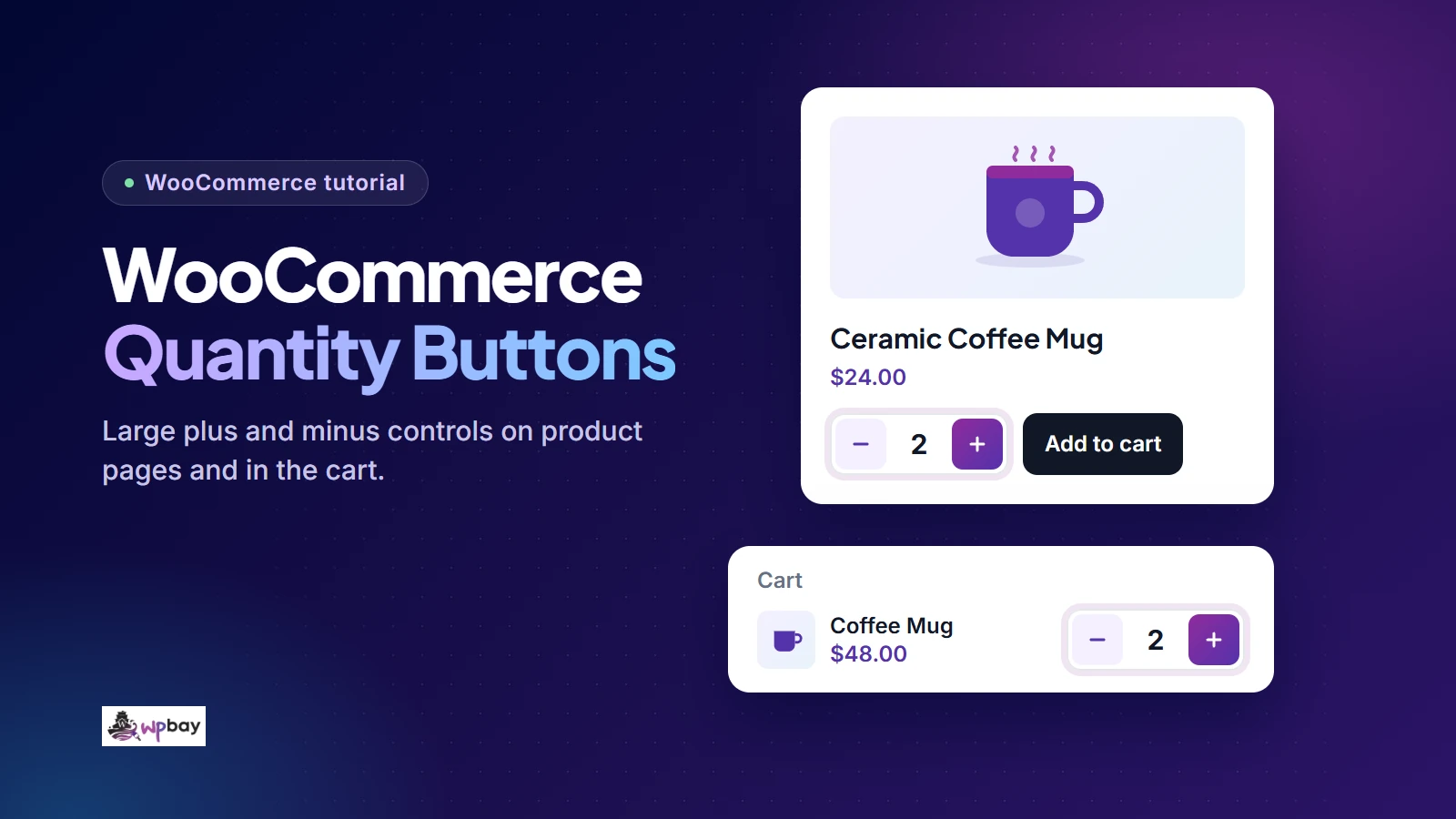
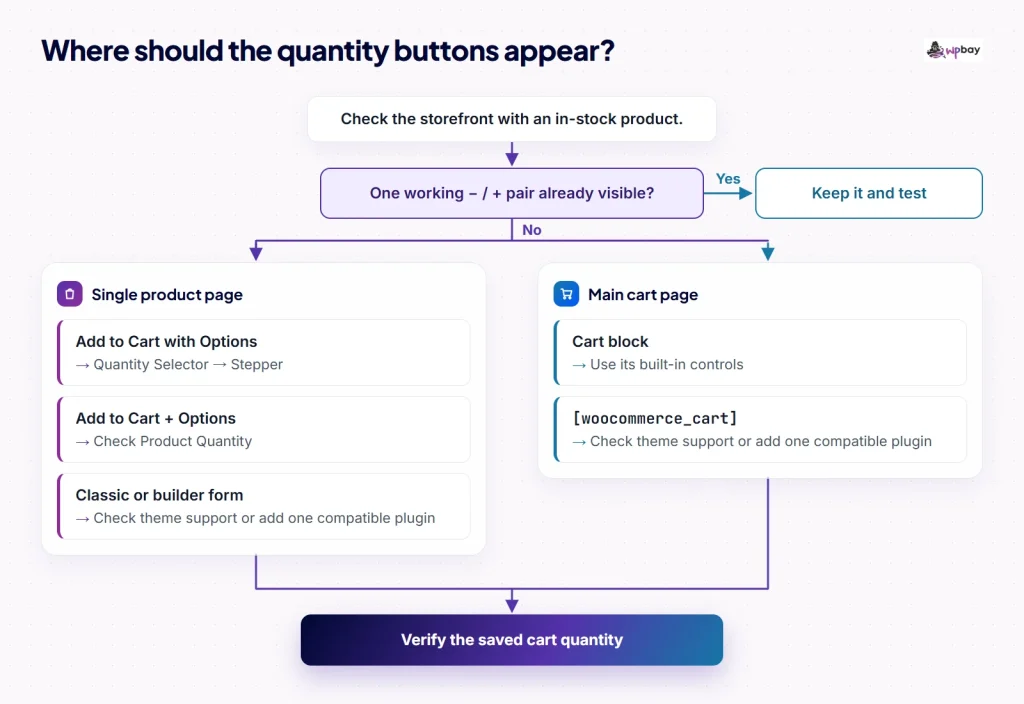
You may not need a WooCommerce quantity plus minus plugin at all. The Cart block already has increase and decrease buttons, and WooCommerce’s block product forms can show a stepper without one. Where a classic product form or the shortcode cart shows a bare number field and your theme or builder doesn’t supply working buttons, the free SMNTCS Quantity Increment Buttons for WooCommerce plugin is the simplest no-code fix. A developer could also add controls through the classic quantity template’s hooks or a theme override. Pay for an extension only when you need rules the field doesn’t already have, such as selling in pairs or accepting decimal quantities.
| What renders the page | What to do |
|---|---|
| Cart block | Keep its built-in buttons. No plugin needed. |
| Add to Cart with Options (legacy product form block) | Set Quantity Selector to Stepper. |
| Add to Cart + Options (Beta) | Confirm Product Quantity (Beta) is in the simple and variable template parts. |
Classic PHP product form or | Use working theme or builder controls if they exist; otherwise install SMNTCS. |
| Any store that needs pack sizes or decimals | Choose a rules extension that documents support for your product form, cart and checkout, or that passes the staging matrix below on those exact routes. |
Check where the quantity buttons are missing
Check both pages, because a classic product form can feed a Cart block, and a block product form can feed the shortcode cart. A plugin that adds buttons to one may do nothing on the other.
For the cart, go to WooCommerce → Settings → Advanced → Page setup to see which page is assigned as Cart. On a block theme, open Appearance → Editor → Templates → WooCommerce → Page: Cart; on a classic theme, edit the assigned page under Pages. WooCommerce’s Cart page guide covers both routes. In List View, look for Cart (with inner blocks such as Cart Items and Cart Totals) or Classic Shortcode. A Classic Shortcode block, or a Shortcode block containing Your Cart is Empty
Then open the Cart page on the storefront with an item in it. If it doesn’t match the editor, check your builder’s Cart template assignment first, then theme overrides if you use a classic theme.
For the product form on a block theme, open Appearance → Editor → Templates → Single Product and find the add-to-cart block in List View. In List View, check whether the block name uses “with” (legacy) or “+” (newer). If the template holds a single classic template placeholder instead of separate product blocks, the form inside it is WooCommerce’s classic PHP form, and the classic route applies even though the theme is a block theme. If only some products look different, look for a product-specific Single Product template; core doesn’t assign single product templates by category. Builders use their own display conditions. In Elementor Pro, check the Theme Builder conditions on the single product template, which can target products or product categories, and look for its Single Add To Cart widget.
Core’s classic quantity template renders a normal editable quantity field with hooks before and after it, and no buttons. So if a classic form already shows buttons, the theme, a builder, a plugin or a snippet draws them. Start with whichever tool renders the form. If the existing buttons work, leave them alone, since a second tool on top is the usual cause of duplicate controls.
Test the shop grid or Mini-Cart separately from the main Cart page. The stock classic shop loop outputs an add-to-cart link with no quantity field, and the Mini-Cart block has its own drawer template. A listing that says “cart” doesn’t say which of these it covers, so ask the vendor for a demo that uses your actual cart or builder.
Use WooCommerce’s built-in quantity controls
The legacy Add to Cart with Options block
Select the block and open the settings sidebar. WooCommerce’s Single Product block documentation describes a Quantity Selector setting with Input and Stepper. Choose Stepper and save the template. In the 11.3.1 source, this block suppresses its stepper for sold-individually products, when minimum equals maximum, when managed stock is one or less, or when no visible quantity input is rendered. Preview an in-stock simple product with five units available and an editable quantity.
The newer Add to Cart + Options (Beta) block
The Add to Cart + Options block has no Stepper setting, because its Product Quantity (Beta) inner block renders a stepper itself. The form is built from template parts per product type. WooCommerce 11.3.1 ships Product Quantity (Beta) in the simple and variable parts, so if it’s missing from either one, add it back with the block inserter inside that form and save. The grouped part uses its own per-item quantity selectors and the external part has only the product button by default, so absence there is intentional; the product page theming guide describes each part. On a variable product, the control hides when a sold-individually variation is selected, which is expected.
Use the inner block’s sidebar to style one form. To style eligible product and Cart selectors together, use Site Editor → Styles → Blocks → Product Quantity (Beta); those shared styles also reach Cart block item selectors, so preview the cart after either change.
The Cart block and the classic cart
Cart block buttons need no setup. The core quantity selector shows them on editable lines, disables them at the limits, includes the item name in its button labels and corrects typed input to the allowed bounds and step before sending anything. Changes go to the server through the Store API’s Update Item endpoint, which returns the updated cart.
In a stock shortcode cart, changing the field doesn’t save anything until the form is submitted with the template’s Update cart button. Some themes and plugins submit the form automatically on change, so a refreshing subtotal doesn’t prove you have the Cart block. Use List View to identify the cart.
Free buttons or paid quantity rules: the options compared
WPBay publishes this article. Versions and prices below come from vendor listings, checked November 21, 2026, when WooCommerce 11.3.1 was the current stable release. We haven’t run these plugins against 11.3.1 for this article, so the placement column is the vendor’s claim, not a test result.
Prices checked November 21, 2026.
| Option | Buttons (vendor-documented) | Rules it creates | Price | Version info |
|---|---|---|---|---|
| WooCommerce core | Both product form blocks; Cart block. Not classic forms or the shortcode cart. | None | Included | 11.3.1 |
| SMNTCS | Classic product pages and classic cart; leaves the Cart block alone | None; reads the field’s min, max and step | Free | 2.8; changelog’s latest named test is WooCommerce 11.1 |
| Business Bloomer mini-plugin | Single product and cart quantity fields | None; reads existing min, max and step | $25 to $59 per year, direct | Classic-cart fix dated October 2, 2026 |
| Extify Quantity Increment Buttons | Shop page, single product, cart (renderer not specified) | Min, max and step by product, category or role; decimals | $29 for one year | 1.0.3; tested to WooCommerce 9.8 |
| Min/Max Quantities (Woo) | None; relies on your existing controls | Minimum, maximum and Group of per product or variation; combined variation rules | $49 for one year | 5.2.19; vendor says it’s built for the Cart and Checkout blocks |
SMNTCS reads the field’s min, max and step. If the store enforces an extra rule on the server, test it in the cart, because the buttons can’t know about it. If one click adds two, check the version: the author’s 2.7 release fixed a double increment with themes that add their own buttons, added field and button labels, and stopped the HTML button variant from submitting the form.
Business Bloomer’s mini-plugin does the same basic job. The direct store lists yearly licenses for three sites or unlimited sites, from $25 to $59; select your site count on the page to see the price for that tier. The direct license includes support from Business Bloomer (the store says replies usually come within one business day) and dashboard updates. The concrete behavioral difference worth checking is its October 2, 2026 changelog entry on removing a line at zero in the classic cart. Its demo below is an older vendor video from July 10, 2023, so it predates that fix.
For rules, Min/Max Quantities is the safer default on a block store because Woo documents block cart and checkout support and validates its Combine Variations rules in cart and checkout. Extify adds its own buttons, styling and role-scoped rules, and it supports decimals, which Min/Max doesn’t advertise. Extify lists WooCommerce 9.8 as tested, though, and “cart” doesn’t name a renderer. Ask whether it has checked your cart type on 11.3.1 before buying for a Cart block store, or run the matrix below on staging. Plugin Republic’s min/max setup guide covers a third option, whose increments are based on the configured minimum. Its own walkthrough shows the plus and minus buttons chapter at 3:29, using Plugin Republic’s settings.
Install and test the free SMNTCS plugin
On staging, go to Plugins → Add New Plugin, search for “SMNTCS Quantity Increment Buttons for WooCommerce” by Niels Lange, click Install Now, then Activate. WordPress’s plugin management guide covers the flow. There’s no settings screen, so open a product straight away and look for one pair of buttons around an editable quantity field. Click plus twice, add to cart and confirm the cart line shows 3. In the classic cart, change it with the buttons, click Update cart and confirm the subtotal follows.
The author documents two filters, show_on_product_page and show_on_cart_page, that hide the plugin’s buttons on the product page or the classic cart respectively. They don’t affect the Cart block, which SMNTCS never touches. Put the line in a child theme’s functions.php or a snippets plugin so a theme update doesn’t remove it:
add_filter( 'show_on_cart_page', '__return_false' );Set up a pack-size rule in Extify
After purchase, go to WooCommerce.com → My subscriptions and click Add to store, as Extify’s documentation describes. In your dashboard, open WooCommerce → Quantity Buttons. Under General Settings, turn on Enable Quantity Buttons. Enable on Shop Page is a separate switch for the shop grid. Leave Allow Decimal Quantities off unless you sell by weight or length.
On the Rules tab, create a rule and name it “Staging pairs test.” Turn on Enable Rule, set Apply To to Products, select one test product, and enter Minimum Quantity 2, Maximum Quantity 8 and Step 2. Check User Roles: if the rule is limited to a role, test as that shopper. Widen it to a category only after the matrix below passes.
Decimals need their own acceptance test. Core registers intval on the woocommerce_stock_amount filter, which truncates toward zero, so without something replacing that filter 0.75 would become 0 for stock purposes. On a separate product with Minimum 0.25 and Step 0.25, order 0.75 on staging and record the saved order quantity, the line subtotal (0.75 of a $10 unit price is $7.50) and the exact stock movement before selling fabric by the quarter meter.
Decide what the rule counts
For a preboxed six-pack, enter a quantity of one per box and count stock in boxes; no rule is needed. A quantity rule is for selling individual units six at a time, where the order shows 6 and stock drops by six. Variable products add a scope question. If a mixed-size pair counts as one pack (1 Medium plus 1 Large), configure the rule on the parent product and test it in the cart, because Min/Max’s Combine Variations rules are validated in cart and checkout and the product stepper alone can’t show the total. As a hypothetical, if an extension caps quantity per line and an add-on plugin splits one variation into two lines, a maximum of 8 per line could allow 16 of that variation, unless stock or an aggregate rule is tighter.
Test quantities, variations and keyboard access on staging
Run payment, stock and invalid-input tests on staging. WooCommerce’s testing orders guide notes that test orders can send email and enter Analytics, and WooPayments has a test mode with test cards. Block outgoing email and disconnect fulfillment and accounting integrations first. Our WooCommerce 11.0 update and test checklist covers the wider checkout checks.
Use a $10 test product with no tax, coupons or dynamic pricing, so three units produce a $30 line subtotal. Give each product managed stock of 20 with backorders set to Do not allow. Empty the cart between cases, and between fixtures reset stock and cancel any pending or draft orders so reserved stock is released.
Simple product baseline
Add two units, confirm the cart shows 2 at $20, change it to 3 (click Update cart on a classic cart), confirm $30, and reload to check the 3 stayed. Pay with a successful sandbox card, then open the order in WooCommerce → Orders. Record its status and order notes. A Pending payment order hasn’t reduced stock yet; once the payment succeeds and the order reaches Processing or Completed, the notes should log the reduction and stock should read 17. Check order statuses if yours differs.
Pack-size matrix (minimum 2, step 2, maximum 8)
The desired storefront result is plus going 2 → 4 → 6 → 8 and stopping, and minus reversing to 2. For each invalid input, record two things separately: what the storefront does (visible correction, clear rejection notice, or both), and what the cart saves after a reload. Note whether the limit was enforced on the product form, at submission, or both, and read the actual message.
| Case | Start | Action | Storefront | Saved result |
|---|---|---|---|---|
| Off-step first add | Empty cart | Type 3, add to cart | Corrected to 2 or 4, or rejected with a notice | Empty, 2 or 4. Never 3. |
| Outside bounds | Empty cart | Type 1, then 10 | Corrected or rejected | Nothing, 2 or 8 |
| Repeat add | Line at 4 | Add 6 more from the product page | Rejection notice, unless the extension documents capping | 4 (or 8 if capped) |
| Cart edit | Line at 4 | Type 5, update, reload | Corrected without notice, or rejected | 4 or 6. Never 5. |
| Zero, classic cart | Line at 4 | Type 0, Update cart | Line removed | Core removal, not a rule failure |
| Stock | Stock 5, backorders off | Click plus past 4, type 6 | Ideally plus stops at 4; typed 6 corrected or rejected | Never 5 or 6 |
Then add one regression case with a minimum that isn’t a multiple of the step, such as minimum 3 and step 2. A native number field uses its minimum as the step base, so the browser accepts 3, 5 and 7. The Store API works in multiples of multiple_of and adjusts bounds to those multiples, so the block cart may expect 4, 6 and 8 for the same product. Decide which set the store intends to sell and make the rule say so.
Variations with different stock
Use a separate variable product with no pack-size rule, stock managed per variation at 20, 3 and 0, and backorders off. Select the first variation, set 10, then switch to the second. On the classic form, the variation script should drop the maximum to 3 and clamp the value to 3. Add to cart, confirm the line names that variation with 3, then add it again: core should refuse with a stock notice, since it counts what’s already in the cart. The out-of-stock variation should be unavailable. A sold-individually variation should be limited to one; a variation with equal minimum and maximum should be fixed at that value, which may be six rather than one.
Keyboard and screen reader
Use Tab and Shift+Tab to move through the quantity controls. Each needs a visible focus indicator under WCAG Focus Visible, and the W3C button pattern expects Space and Enter to activate. Each press should change the value by one step without submitting the form, typing should still work, and when plus disables at the maximum, focus shouldn’t vanish. With a screen reader, move through a cart holding the Medium and Large T-shirt and verify that the button name or announced row context identifies each line, including its variation. Confirm the new value and any rejection notice are announced or easy to reach, and record the browser and screen reader pair. On a phone, check Target Size (Minimum): 24 by 24 CSS pixels or the criterion’s spacing exception. A tap test helps, but measure in dev tools to be sure.
Record the renderer, software versions and the exact step that passed or failed. Save the original template and rule settings before changing them, because some extensions keep rules in the database after deactivation. After deployment, check the live store only for storefront controls, the saved cart quantity and the checkout summary; leave payments, stock deduction and invalid inputs on staging unless you already have an approved live-order procedure.
Fix missing buttons, duplicate controls and stale totals
First, check whether the item has an editable quantity field. A sold-individually item can still render a hidden input, and Product Bundles can fix a bundled item’s quantity with equal minimum and maximum. For stock, check whether backorders are allowed and which renderer you’re on, since the legacy and newer blocks use different visibility checks. If the field is eligible but bare, check the vendor documentation for that exact widget or cart.
If one click adds two, inspect the live field’s step. A value of two may be intentional. If two sets of buttons appear, inspect the wrapper and find what outputs each. With one set, watch the field value, the network panel and the refreshed cart: two click handlers, a change-event script and a post-refresh recalculation all produce a double step. Disable snippets, plugins or builder controls one at a time on staging.
For stale totals in the shortcode cart, click Update cart and reload, then read any notice. In the Cart block, look for the quantity update in the network panel after a short pause (the block debounces clicks). A failed request shows a status, an error code and a message: quantity validation failures return 400, a stale item key returns 409.
If the product page allows 4 but the cart rejects it, read the rejection notice or API error, check the current line quantity and stock (the combined quantity may exceed the limit), and reproduce on an empty cart as the shopper role the rule targets. Only after that, look for an overlapping rule from another plugin or snippet.
Developer note: hooks and Store API limits
WooCommerce → Status → System Status lists template overrides and flags outdated copies; an overridden global/quantity-input.php or cart/cart.php often explains store-specific buttons. The Cart block ignores woocommerce_cart_item_quantity, per the hook alternatives reference, and takes quantity limits from the Store API. In 11.3.1, QuantityLimits starts from wc_get_quantity_input_args(), applies the woocommerce_store_api_product_quantity_minimum, _maximum, _multiple_of and _editable filters, rounds bounds to multiples and caps the maximum at stock. So compare each surface against the intended rule, not against the product field; differences such as the minimum-3, step-2 case above can be legitimate.
Rejection logic needs a hook per route. Classic product adds use woocommerce_add_to_cart_validation, and classic cart updates use woocommerce_update_cart_validation. In the Store API CartController, the woocommerce_store_api_validate_add_to_cart action fires for every add, after purchasability and stock checks but before the code branches into first and repeat adds; callbacks reject by throwing an exception. An eligible first add is then normalized to the limits. Repeat adds and line updates are validated against them, and since 11.2 the woocommerce_store_api_cart_item_quantity_validation filter runs after those core checks and rejects by returning a WP_Error (see the 11.2 advisory). Because a repeat add hits both, check in one place, for example by skipping lines already in the cart inside the action, or shoppers get duplicate messages.
To check server enforcement on staging, add the pairs product at 4, then run this in the browser console on the storefront so it uses the same session cookie. Headless clients should send a Cart-Token header instead.
const cartRes = await fetch( '/wp-json/wc/store/v1/cart' );
const nonce = cartRes.headers.get( 'Nonce' );
const cart = await cartRes.json();
const res = await fetch( '/wp-json/wc/store/v1/cart/update-item', {
  method: 'POST',
  headers: { 'Content-Type': 'application/json', 'Nonce': nonce },
  body: JSON.stringify( { key: cart.items[0].key, quantity: 5 } ),
} );
console.log( res.status, await res.json() );
Under an enforced step of 2, expect a 400 with an error code and message. Then GET /wp-json/wc/store/v1/cart again and confirm the line still reads 4 and its quantity_limits show the intended minimum, maximum and multiple_of.
Frequently asked questions
Can I add the buttons without a plugin?
Yes, on block-rendered pages. Set the legacy product form block to Stepper, keep Product Quantity (Beta) in the newer form, and use the Cart block’s built-in controls. Classic PHP forms and the shortcode cart need a theme, builder, plugin or custom code.
Why did the quantity buttons disappear when I chose a variation?
A sold-individually variation is limited to one, and equal minimum and maximum fix the quantity at that value. For low stock, check whether backorders are allowed and which product form block renders the page, because visibility checks differ. If every variation loses its buttons, look for a console error.
Does SMNTCS work with the Cart block?
It leaves the Cart block alone, because the block already has its own buttons. On a block cart store, you only need SMNTCS for a classic product form. Its show_on_cart_page filter affects only its classic-cart output.
Do I need to click Update cart?
In a stock shortcode cart, yes: the quantity and subtotal aren’t saved until the form submits, unless your theme submits it automatically. The Cart block saves changes itself after a short pause.
Can I sell in packs of six?
Yes, with a rules extension such as Min/Max Quantities (Minimum quantity 6, Group of 6) or Extify, or custom validation. Test that 6 and 12 save and 7 doesn’t, on a first add, a repeat add and a cart update. If a six-pack is one boxed item, sell it as its own product.
Will quantity buttons give buyers a bulk discount?
No. They change the item count, not the unit price. Tiered pricing needs a pricing rule; our guide to WooCommerce pricing and quantity discount plugins compares options.
Last reviewed: November 21, 2026. Plugin prices, versions and terms may change.