

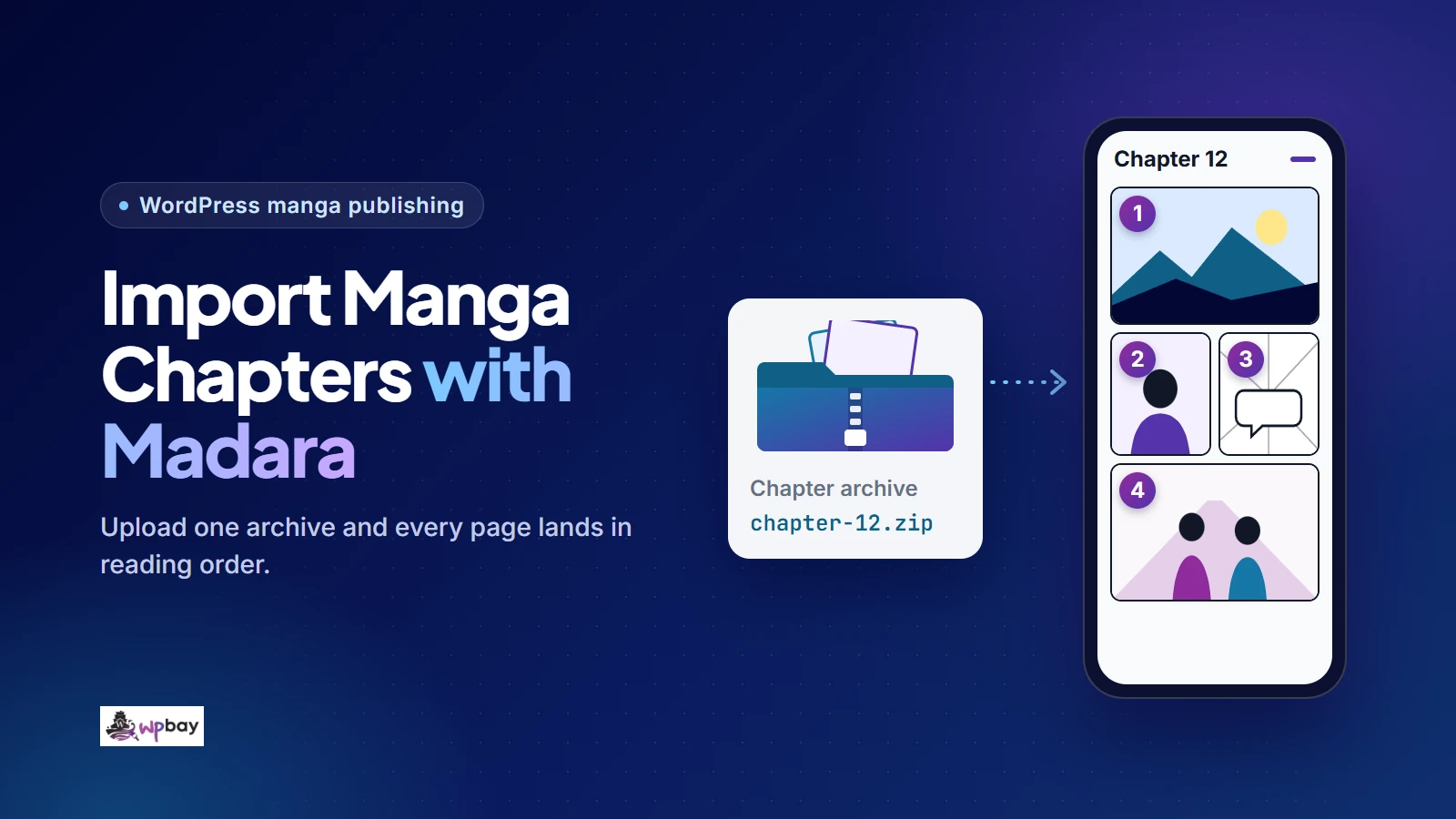
If a publisher already sends you finished chapter ZIPs, you probably don’t need a manga scraper for WordPress. Madara’s own uploader takes a ZIP for one chapter, or a single ZIP holding several chapters, and comes with the theme’s core plugin. A scraper only makes sense when you have to keep fetching new chapters yourself from a source you own or have written permission to import from. For moving a full catalog between two sites, use MangaBooth’s Madara Data Export & Import add-on and check where the new site serves its images from. Build the staging test around Chapters 9, 9.5 and 10. The fractional chapter catches ordering mistakes that three whole numbers can hide, and a large page number printed on every image catches pages out of order.
WPBay publishes this article and sells the scraper used in the automated example. The native ZIP route described first costs nothing extra if you already own Madara.
When to use a manga scraper for WordPress
| Your situation | Route | Section to follow |
|---|---|---|
| You have the image files or the publisher’s ZIPs | Madara’s Upload Chapter or Upload Manga panel | “Upload one chapter from a ZIP,” then “Bulk upload chapters” |
| You fetch each new release yourself from an authorized source | One scraper rule, tested on one series before you depend on it | “Run a scraper rule for one authorized series” |
| You’re moving one Madara site to another | MangaBooth’s export and import add-on, then a check of where images load from | “Move an existing Madara catalog” |
If your agreement says the publisher supplies ZIPs, use those files. If the scraper can’t get through an unchanged rerun cleanly (see the duplicate tests below), ask the publisher for ZIPs or for a feed or API they support, and stay with the native uploader. WPBay’s comparison of WordPress scraper plugins is useful if your source isn’t built on Madara. Keep in mind that a general-purpose crawler creates ordinary posts, so it still has to prove it can create Madara chapter records before it fits this workflow. If you publish prose rather than images, read the Madara web-novel import walkthrough instead.
Prepare a test series on staging
This tutorial assumes the art is original or licensed for publication. Under U.S. law, the Copyright Office’s Circular 16A explains how to identify the rights holder and ask for permission. Permission to publish the artwork and permission to send automated requests to someone’s server are two different approvals. If you work with a partner, get both in writing, and confirm which series are covered and how the files will reach you.
On a staging copy, activate Madara and its companion plugin, which MangaBooth calls WP Manga (Madara-Core). Create the series under Manga → Add New. MangaBooth’s create-a-new-manga guide lists three chapter types (Manga, Text and Video) and says the choice can’t be changed later, so pick Manga. Madara 2.2.7 added a default Chapter Type setting in WP Manga Settings, according to the theme changelog. If Add New doesn’t show a type selector, that setting is the reason.
Record the versions before you start: WordPress, PHP, Madara, WP Manga Core, the scraper build, and where you got that build. Everything below about labels and results applies only to the versions you write down. Then back up the database and the image store together, and restore that backup once on staging to prove it works. Restoring only one of the two gives you chapters without pages, or pages that no chapter points to.
Make 30 numbered cards across three chapters, each showing its page number in large type. Use a separate fresh staging title for the bulk batch and another for the scraper test, and give the single-chapter test its own title. Keep the WordPress title ID, the source chapter key and the Madara chapter ID in separate columns. The title ID appears in the edit screen URL as post=, as the edit link format shows. The source key is your file label for ZIPs, or a stable chapter ID or canonical URL for a scraper. You’ll read the Madara chapter ID after import.
| Source chapter key | Volume | Display label | Planned order key | Pages | Storage |
|---|---|---|---|---|---|
| test-ch-009 | Volume 2 | Chapter 9 | 10 | 12 | Local |
| test-ch-009-5 | Volume 2 | Chapter 9.5 | 20 | 4 | Local |
| test-ch-010 | Volume 2 | Chapter 10 | 30 | 14 | Local |
The order keys are spaced by ten so a later insertion, such as a 9.6 extra, can take 25 without renumbering the others. Whether your build accepts these keys is one of the things the bulk test checks.
Upload one chapter from a ZIP
Upload Chapter 9 by itself first. Name the files with zero padding, 001.jpg through 012.jpg. A plain string comparison puts 10.jpg before 2.jpg, and padding makes an alphabetical sort agree with numeric order. It can’t help if an uploader orders files by their position in the archive, so you still need to check the order in the reader.
MangaBooth’s single-chapter upload documentation shows the required archive layout only as an on-screen example, so copy the layout from your panel. Open your ZIP and compare it with that example level by level. Look for an extra wrapper folder above the level where the panel’s example starts, which archiving a folder by right-clicking it often adds. Delete hidden entries such as the __MACOSX folder that macOS Finder includes. When the upload works, write down the exact layout next to your version numbers so the next person can reuse it.
- Open the series and find its Upload Chapter panel.
- Choose a volume if the series uses volumes. The documentation marks this step as optional.
- Enter “Chapter 9” in Chapter name. Leave Name Extend empty unless the chapter has a subtitle, and note whether the panel accepts it empty.
- Choose Local as the storage.
- Choose the ZIP, click Upload chapter, and wait for “Upload Complete!”
Publish the title on the private staging site before the first reader check. A draft title tells you nothing about what visitors will see. Keep staging closed with an IP allowlist if your host offers one. A password prompt in front of the site or CDN can block image requests that a real visitor’s browser would make, so the test would miss the delivery layer. Then open Chapter 9 in a logged-out private window and confirm the cards run from 1 to 12 with nothing missing or repeated. Save that reader URL in the inventory as your known-good reference.
Bulk upload chapters and check both kinds of order
For several chapters at once, use the series’ Upload Manga panel. MangaBooth’s multiple-chapter upload documentation lists three fields (Storage, Volume, File) and says that if the ZIP has no volume folders, the plugin creates chapters only. The folder layout itself is again shown only as an image, so follow the example in your panel. Pack the batch twice, once with no volume folder and once grouped under Volume 2, and import each into its own fresh title.
The batch should create Chapter 9 with 12 pages, Chapter 9.5 with four, and Chapter 10 with 14. The first archive should create no volume, and the second should put all three chapters in Volume 2. Write down the labels Madara actually shows, because a folder name doesn’t have to become the display label. If a count is wrong, note the chapter and page before you change anything.
Check page order and chapter order separately. For page order, read every chapter to the end. Chapters 9 and 10 are where a text sort gives itself away, because page 10 shows up right after page 1. For chapter order, follow Next from 9 to 9.5 to 10 and Previous back again, then confirm the series chapter list and the reader’s chapter picker both show all three. A descending catalog list can put Chapter 10 first while Next still moves forward, and that’s fine if each view shows the direction you meant.
Madara’s changelog records an option to order chapters by custom index in 1.5.1.4 (November 8, 2018), an Index field on single-chapter upload in 1.6.2, and a performance update to custom index in 2.4 (March 22, 2026). Find the index field and the sort setting on your build and write down their exact names. Enter 10, 20 and 30, reload to check the values were saved, then check the list in both directions, the picker and Previous/Next. If a page lands in the wrong spot, the chapter editor lets you drag images into order and save, according to MangaBooth’s chapter list instructions. Fixing the filenames and uploading again also works.
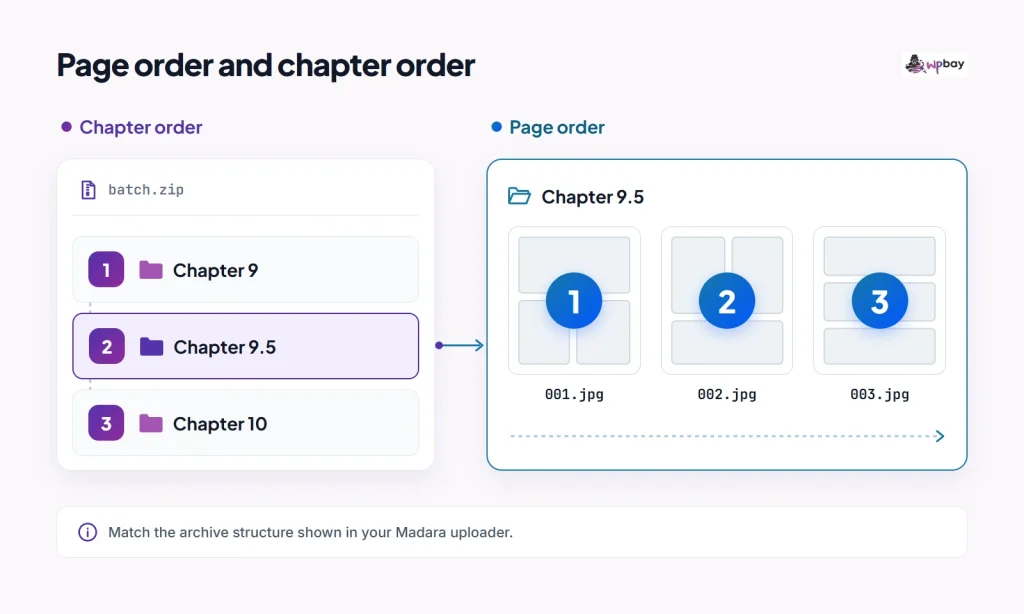
The diagram shows the expected result: Chapter 9.5 between 9 and 10, and each chapter’s cards in numbered order. Your staging reader has to match it in every view.
Choose where Madara stores the chapter images
Use Local for the whole worked example. MangaBooth’s WP Manga Settings page documents a Manga Default Storage setting with a Local option, and the bulk upload guide lists Local, Imgur, Blogspot and Amazon S3 in its Storage step. Before trying a larger archive, open Tools → Site Health → Info → Media handling. “Max effective file size” there is the smaller of PHP’s upload and POST limits. That’s only PHP’s ceiling: NGINX can reject a smaller request with its own client_max_body_size and an HTTP 413, and so can a proxy or your host. Plan disk space for the extracted images as well as the upload, because a ZIP’s compressed and uncompressed sizes can be very different.
Next, find out where the fixture’s files actually live. WordPress keeps the upload path and the upload URL as separate values, and a CDN can serve local files from another hostname, so a single image URL doesn’t tell you where everything is stored. In a logged-out window, open the first, middle and last image of each of the three chapters in new tabs and write down all nine URLs. On the server, print the upload base with wp eval 'echo wp_upload_dir()["basedir"];' --url=https://staging.example.com (use your staging URL, which also picks the right subsite on multisite) and find the same nine files under it. The smallest folder that holds all nine, and nothing from other titles, is the fixture’s storage scope. If chapters end up in folders that also hold other titles’ files, the file comparison later has to cover that shared parent.
Once the Local import works, repeat it with the remote destination you plan to use. The theme listing advertises Amazon S3 and S3-compatible storage, and FTP/SFTP needs the separate WP Manga FTP/SFTP Storage extension. Point staging at its own bucket prefix or remote folder so the fixture’s files can be listed in isolation, and record the hostname that serves them.
Run a scraper rule for one authorized series
The automated example uses Ultimate Web Novel and Manga Scraper by CodeRevolution, which WPBay sells. The WPBay listing advertises Madara integration, manual and scheduled imports, Local or configured remote storage, draft or pending status for the imported title, and a demo. On its CodeCanyon listing the developer advertises imports from generic Madara-based sources and notes that some sites need Puppeteer. Madara must already be installed, and the server’s PHP needs the cURL extension.
Ask the source operator to approve the requests, then put just the three fixture chapters on that source. Test the partner’s series URL with the same plugin build and hosting setup you’ll use in production. If you want to try before buying, ask the vendor whether the advertised demo can run a custom series URL. If it can’t, ask whether they’ll confirm support for that source before you pay. The build matters: as of November 2026, WPBay’s product details list version 2.0.5, while the CodeCanyon changelog runs to 2.0.6. Record the version you actually installed.
The developer’s help page puts these controls under Settings → Ultimate Web Novel and Manga Scraper → Main Settings, not on individual rules. Manga Storage Device lists more choices once storage is configured in Madara, Enable Logging for Rules turns on the run history, and Timeout for Rule Running (seconds) caps each run. The rule screens it documents (an Active checkbox, a Schedule (Hours) field, and a run-now action in the Actions column) belong to the older source-specific rules. Treat them as the labels to look for on the generic rule, not a guarantee.
- In Main Settings, set Manga Storage Device to Local, turn on Enable Logging for Rules, and save.
- Open the generic Madara rule screen and enter the authorized series URL.
- Before saving, screenshot every field, including the destination title behavior, status, any chapter limit, image handling, the Active checkbox and the schedule. Note whether any field overrides the Main Settings storage choice.
- Leave the schedule empty or off, save, and use the run-now action once.
- Open the Activity Log, wait until the rule is gone from Rules Currently Running, and read the completed entry.
Then record what the run produced: whether it created a new title or wrote into an existing one, the title’s ID and status, three chapters with 12, 4 and 14 pages, and stored originals inside the storage scope you mapped. The help documents Reverse Scraping and Max # Chapters only for named source rules such as FanFox, so don’t assume the generic rule has them. The CodeCanyon changelog records resuming from the last scraped URL for generic scrapers in 2.0.4 (October 15, 2025) and lists it again in 2.0.6 (September 20, 2026). Resuming from a URL is not the same as matching existing chapters or filling in missing pages, so the duplicate tests below still apply.
The developer’s v2.0 walkthrough from October 25, 2024 shows the generic Madara-source rule as it looked at that release. Use it to recognize the screen, and follow the labels on your installed version where they differ.
Check what a logged-out visitor can see when the rule creates a draft title and when it adds a chapter to a published title. For each case, check the series listing, the direct chapter URL and one direct image URL separately, because an image file can be reachable even when the chapter page isn’t, and a CDN may keep serving a cached copy. Record the result with the rule configuration and plugin version you used, since it only tells you how that setup behaves. If chapters added to a published title go live immediately in your test, run new chapters into a staging copy first. Publish them in production only after review, by rerunning the same rule there or uploading the reviewed ZIP, and check production’s chapter IDs and files the same way.
Go ahead with the scraper only if the first manual run matches the inventory, an unchanged rerun adds nothing, and the first scheduled run (enabled after the rerun passes) shows a completed entry in Activity Log. WordPress’s own scheduler normally fires on page loads, and DISABLE_WP_CRON turns that trigger off unless a system task calls it instead. If a scheduled run never appears, check that trigger before you blame the rule.
Prevent duplicate chapters and image files
The vendor’s help doesn’t say how a rerun decides a chapter already exists, or what happens to a half-finished one, so keep your own import log. Key each row by source series plus a stable source chapter key, and add an edition or language column if editions share chapter numbers. Map each row to the title ID, Madara chapter ID, page count and stored paths.
An unchanged rerun means running the same saved rule a second time with nothing changed at the source, and confirming in Activity Log that it finished. Take three snapshots before and after it:
- Title IDs: every manga title on staging with its ID and status, so a second copy of the series shows up even if the original title looks untouched.
- Chapter IDs for the fixture’s titles.
- A list of every file path with its hash across the fixture’s storage scope (or its bucket prefix), with originals and generated sizes counted separately, because WordPress can generate image sub-sizes for attachments.
The rerun passes when no title or chapter ID is added or removed, the path lists match, and no hash has changed. The chapter count can stay at three even if the rerun replaces a record or rewrites its images, which is why you compare IDs and hashes and not just totals. A new destination record for a source chapter that already exists means the rule failed. WPBay’s RSS duplicate-import guide uses the same repeat-run logic for feeds. Next, add one chapter at the source. The diff should show exactly one new chapter ID and that chapter’s original images, while the existing three keep their IDs and hashes.
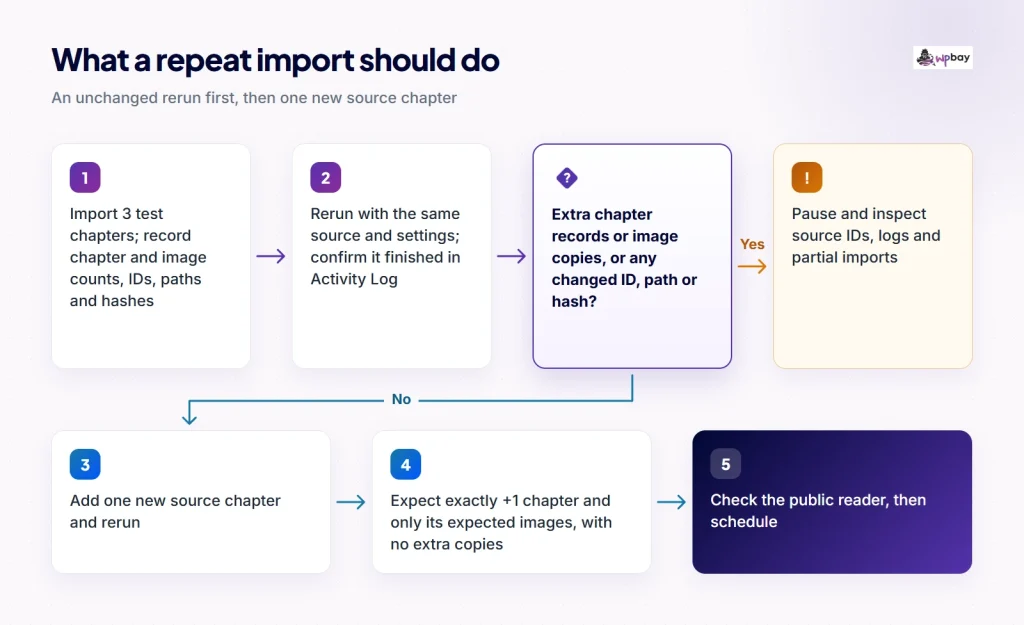
Expected changes for the three-chapter fixture: the repeat run adds zero chapters, and adding one source chapter adds one destination chapter plus that chapter’s original images.
Native ZIP batches need their own test. Upload a batch that overlaps an existing chapter, and a retry after a partial upload, then record what the uploader’s duplicate-name choice did to the existing chapter ID and files. Madara’s changelog mentions a fix to the choice not to override chapters with duplicate names (1.6.4.2), appending images to a chapter without overwriting it (1.5.5), and a fix for duplicated chapters in volumes (2.3.1.1). None of those entries promise that a retry keeps the chapter ID or removes leftover files.
Failure tests
Restore the database and image store to the same backup before each test, and turn off schedules so a manual run and a scheduled run can’t overlap. Closing the browser tab doesn’t stop a server-side import. Before any retry, wait for a terminal state: the rule gone from Rules Currently Running and a completed or failed entry in Activity Log. If your build gives no reliable signal, restore the staging backup rather than retrying on top of a run that may still be going.
| Setup | What to record | Recovery to test |
|---|---|---|
| On the test source, make page 3 of Chapter 9.5 return an error, then restore the same page | Whether 9.5 exists, its page count, the log’s first error | Rerun and check whether the existing chapter ID gains the page or a second chapter appears |
| Replace page 3 of Chapter 9.5 at the same source key | Whether the old file’s hash changed or a new file appeared next to it | Check that the reader shows the new image |
| Bulk ZIP with one corrupt image in the Chapter 9.5 folder | Which chapters finished, which are partial, any message shown | Re-upload 9.5 only and record what each duplicate-name option does |
Don’t delete a file just because it looks orphaned. A file can still be used by another chapter, a generated size or a storage provider’s record, and a hash change or one reader view won’t tell you that. If the recovery you tested left stray records or files, the safe path is to restore the fixture from backup and retry against a clean copy. Only clean up by hand after you’ve traced every reference and confirmed you can restore the backup.
Optional: command-line snapshots
For maintainers with shell access, these commands need Linux, Bash, WP-CLI, GNU findutils and GNU coreutils; they haven’t been adapted for macOS. Add --url for your staging site to every WP-CLI call. First list titles, using the post type your fixture actually has:
wp post get 123 --field=post_type --url=https://staging.example.com
wp post list --post_type=TYPE_FROM_ABOVE --post_status=any --fields=ID,post_title,post_status --format=csv --url=https://staging.example.com > ~/snapshots/titles-before.csv
MangaBooth’s chapter views tutorial uses a site-prefixed manga_chapters table with chapter_id as the record ID. Find the parent-title column on your build with wp db query "DESCRIBE $(wp db prefix --url=https://staging.example.com)manga_chapters" --url=https://staging.example.com, then list only the fixture’s IDs. Selecting just the IDs keeps view counters out of the diff. If the query fails or the line count isn’t the number of chapters you expect, don’t use that snapshot.
wp db query "SELECT chapter_id FROM $(wp db prefix --url=https://staging.example.com)manga_chapters WHERE PARENT_COLUMN = 123 ORDER BY chapter_id" --skip-column-names --url=https://staging.example.com > ~/snapshots/ids-before.txt && wc -l ~/snapshots/ids-before.txtThis script records paths and hashes for one storage scope. It writes a temporary file next to the output, fails on an unreadable folder or bad output path, and refuses to save an empty list:
#!/usr/bin/env bash
# Path + SHA-256 inventory of one storage scope (Linux, GNU findutils/coreutils).
# Usage: ./inventory.sh /path/to/fixture/scope ~/snapshots/files-before.txt
set -euo pipefail
dir="$(realpath -e -- "${1:?storage folder required}")"
outdir="$(realpath -e -- "$(dirname -- "${2:?output file required}")")"
out="$outdir/$(basename -- "$2")"
case "$out" in "$dir"/*) echo "Save the snapshot outside $dir" >&2; exit 1 ;; esac
tmp="$(mktemp -- "$outdir/.inventory.XXXXXX")"
trap 'rm -f -- "$tmp"' EXIT
( cd -- "$dir" && find . -type f -print0 | sort -z | xargs -0 -r sha256sum -- ) > "$tmp"
[ -s "$tmp" ] || { echo "No files found in $dir" >&2; exit 1; }
mv -- "$tmp" "$out"
trap - EXIT
echo "Saved $(wc -l < "$out") entries to $out"
Compare the before and after files with diff. New paths show up as added lines, and rewritten files show up as changed hashes, even when the timestamps were preserved. Without shell access, compare the File Manager listing of the scope folder before and after, and read each chapter through in the reader.
Acceptance checklist before publishing
In a logged-out private window on desktop and on a phone, check every reading layout your site offers. Madara’s feature list describes single-page and all-pages modes. In all-pages mode you can count images in the console (select the reader’s page images, not logos or placeholders). In single-page mode, step through each page, because only one is in the document at a time. In both modes, confirm by the number printed on the card, since a lazy-load placeholder can look like a loaded image.
For every route:
- The chapter list and picker show 9, 9.5 and 10 in the direction you intended, and Next and Previous move 9 → 9.5 → 10 and back.
- The chapters show 12, 4 and 14 cards, each in full numbered order.
- Images load from the storage and hostname you recorded, and direct image URLs behave as you expect for the title’s status.
For scraper runs, also confirm that the unchanged rerun added no title IDs, chapter IDs or files, that one new source chapter added exactly one chapter, and that the first scheduled run completed in Activity Log.
If a page is blank, open the browser’s Network tab, filter to images and reload. Start with the response status and the final image URL, then check whether the file exists at the origin.
| What you see | Possible causes | Check next |
|---|---|---|
| 404 | Wrong reference, missing file, a stale cached response, or a server hiding a protected file | Compare the URL with the stored path, then request the origin directly, bypassing the CDN |
| 403 | File permissions, bucket policy, CDN or hotlink rules, a security plugin. A 403 doesn’t prove the file exists | Find the file in storage, then check origin and CDN rules |
| Request goes to the source’s hostname | Hotlinked images or rewritten URLs in chapter data | The rule’s image setting, then whether an original exists in your storage |
| Pages load but out of order | Filename sorting, archive order, editor image order | Filename padding, then the chapter editor |
| Next skips 9.5 | Index values, labels, list direction | The saved index values and sort setting |
| Extra chapters after a retry | Importer missed an existing chapter, overlapping rules, volume duplication | Compare chapter IDs, look for other rules aimed at the series, check the theme version |
Move an existing Madara catalog
MangaBooth’s Madara Data Export & Import add-on was listed as free as of November 2026 and supports Manga and Text/Video types. It can hotlink images from the old site or download them locally, and it can override existing titles or create new ones. It isn’t described as a full-site clone, so plan separately for users, theme and plugin settings, and redirects from old URLs. Back up the destination database and image store together before importing, because a database-only backup can’t undo downloaded or overwritten images.
Before cutover, compare title, chapter and volume counts between the two sites, spot-check metadata such as genres, authors and chapter labels on a few representative titles, and read through a few chapters with Next and Previous. Then look at where those images actually load from. To test for hidden dependence on the old host, use a staging copy of the new site and block the old origin from that copy only (a hosts-file entry or firewall rule on the staging server), purge or bypass the CDN cache, and reload sample chapters. Blocking the old hostname in your own browser only catches direct hotlinks, not a CDN or proxy that still pulls from the old server.
Frequently asked questions
How do I retry one failed chapter without duplicating the rest?
If the chapter is missing entirely, upload it alone through Upload Chapter and compare chapter IDs with your last good snapshot. If a partial copy exists, use the repair path you proved in the staging failure test, or restore the backup and upload the chapter cleanly. Don’t rerun a whole-series scraper rule to fix one chapter unless you’ve tested what it does to the others.
Why did a ZIP fail when ordinary image uploads work?
The ZIP may be over the effective limit in Site Health, or over a lower server or proxy limit, which often shows up as an HTTP 413. If size isn’t it, check free space for the extracted files. Then compare the archive with the panel’s example, looking for an extra wrapper folder above the level the example starts at and for hidden metadata folders.
Does a draft title keep its images private?
Not necessarily. Draft status controls whether WordPress shows the title and chapter pages, but image files in public storage can still be fetched by anyone with the direct URL. Test a direct image URL while logged out, and keep unreleased chapters on staging if that matters.
Can a scraper import from any site that uses Madara?
No. Compatibility depends on the specific source, and the developer says some sites need Puppeteer. Even when the markup is compatible, you need the right to publish the images and the operator’s agreement to automated requests. Test one authorized series on staging with your installed build before you commit.
Can I test a partner’s series before buying the scraper?
The WPBay listing advertises a demo, but this guide hasn’t confirmed whether it accepts a custom series URL. Ask the vendor directly, and if it doesn’t, ask them to confirm support for that source. The real go/no-go is your own first import, an unchanged rerun, and the first scheduled run on staging.
Last reviewed: November 20, 2026, against public MangaBooth, CodeRevolution and WordPress documentation. Versions, features and prices may change.