



Advanced Woocommerce Sales Reporting

 Well Documented
This WooCommerce sales report plugin provides a complete system to track sales by year, month, date, or custom range. From the dashboard, you can filter reports by product type, user role, customer, payment/shipping method, or order status to view key metrics like total sales, profit, cost of goods, tax, and purchased quantity.
Admins can enable email notifications to receive CSV reports and stats at set intervals. You can also create rules for specific categories to monitor profit percentage for selected items. With just a few settings, access sales summaries, profit reports, order details, and manage all sales statistics with ease.
Features
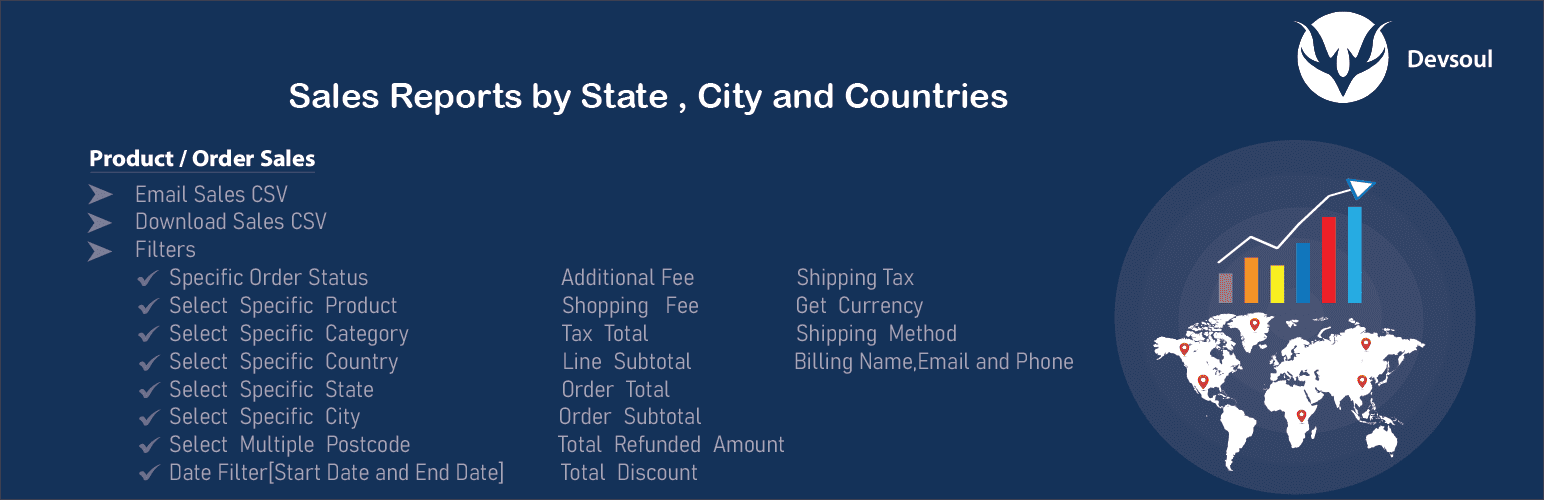 Access Dashboard to View Country Sales Report
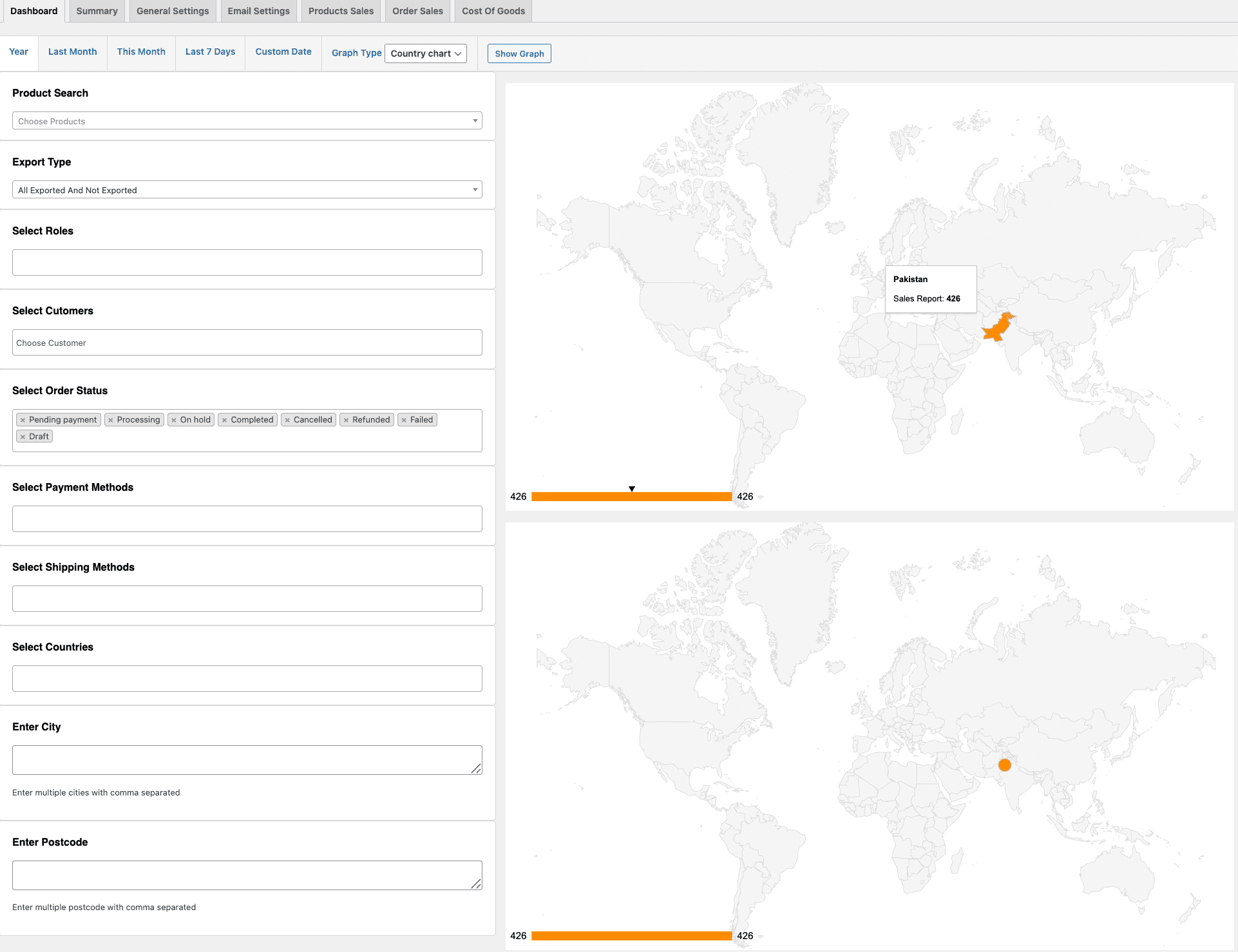
Go to WordPress Admin Panel> WooCommerce > Sales Report Pro. Now click on Dashboard, and here you can view country sales report per year and for a specific month or custom dates.
From the main menu, you can view three different types of charts:
- Country Chart: Simply view complete sales report within specific region and use advanced filters to find relevant products, categories, shipping methods, cities, postcodes, and more.
- Pie Chart: This provides you a visual breakdown of products and categories performing well among specific regions.
- Column Chart: Easily compare daily, weekly, or monthly sales and make future inventory decisions according to visible growth and performance insights.
Manage Total Sales Summary
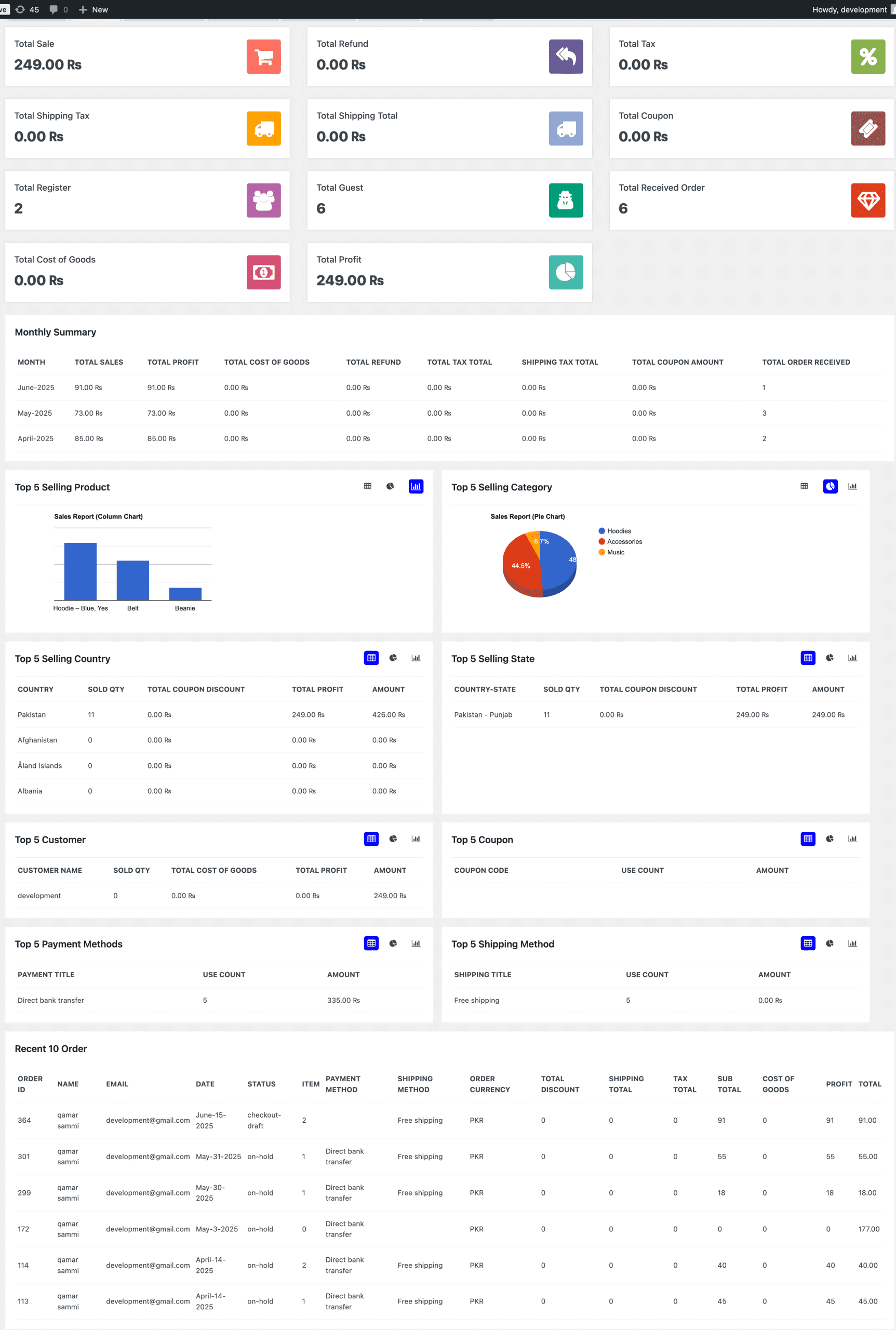
Go to WP Admin Panel> WooCommerce > Sales Report Pro and click on Summary. Here you can view the total count for sales, refunds, tax, and more. In this way, you don’t need to do any manual effort, just switch to the sales summary section and instantly get a complete overview of your store’s performance. Moreover, admins can also track:
- Top 05 Selling Products and Categories
- Top 05 Selling Countries, States, and Customers
- Top 05 Coupons, Payment, and Shipping Methods
Recent 10 Orders
View recent orders from the table and track essential details to analyze customers’ preferred products and their overall shopping patterns.
Configure General Settings
Go to WordPress Admin Panel > WooCommerce > Sales Report Pro. Now, from the top menu, select General Settings. Here you can configure following options:
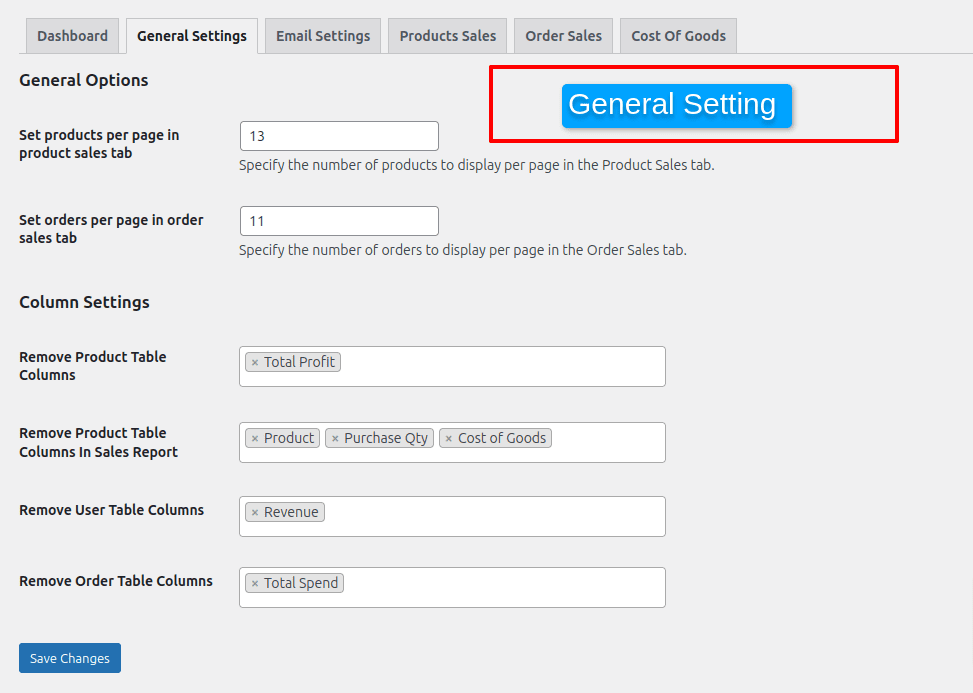
Settings Overview
- Products & Orders per Page
- Product Sales Table: Set the number of products to display per page (WP Admin > WooCommerce > Sales Report Pro > Product Sales).
- Order Sales Table: Set the number of orders to display per page (WP Admin > WooCommerce > Sales Report Pro > Order Sales).
- Column Settings
- Product Table (WP Admin > Products > All Products): Remove columns such as Profit, Cost of Goods, and Total Profit.
- Sales Report – Product Table (WP Admin > WooCommerce > Sales Report Pro > Product Sales): Remove columns like Product, Purchase Quantity, Price, Cost of Goods, Total Cost, Profit, Tax, Subtotal, and Total.
- User Table (WP Admin > Users > All Users): Remove columns such as Profit and Total Spend.
- Order Table (WP Admin > WooCommerce > Orders): Remove columns such as Profit and Total Spend.
Enable Email Settings for CSV Sales Reports
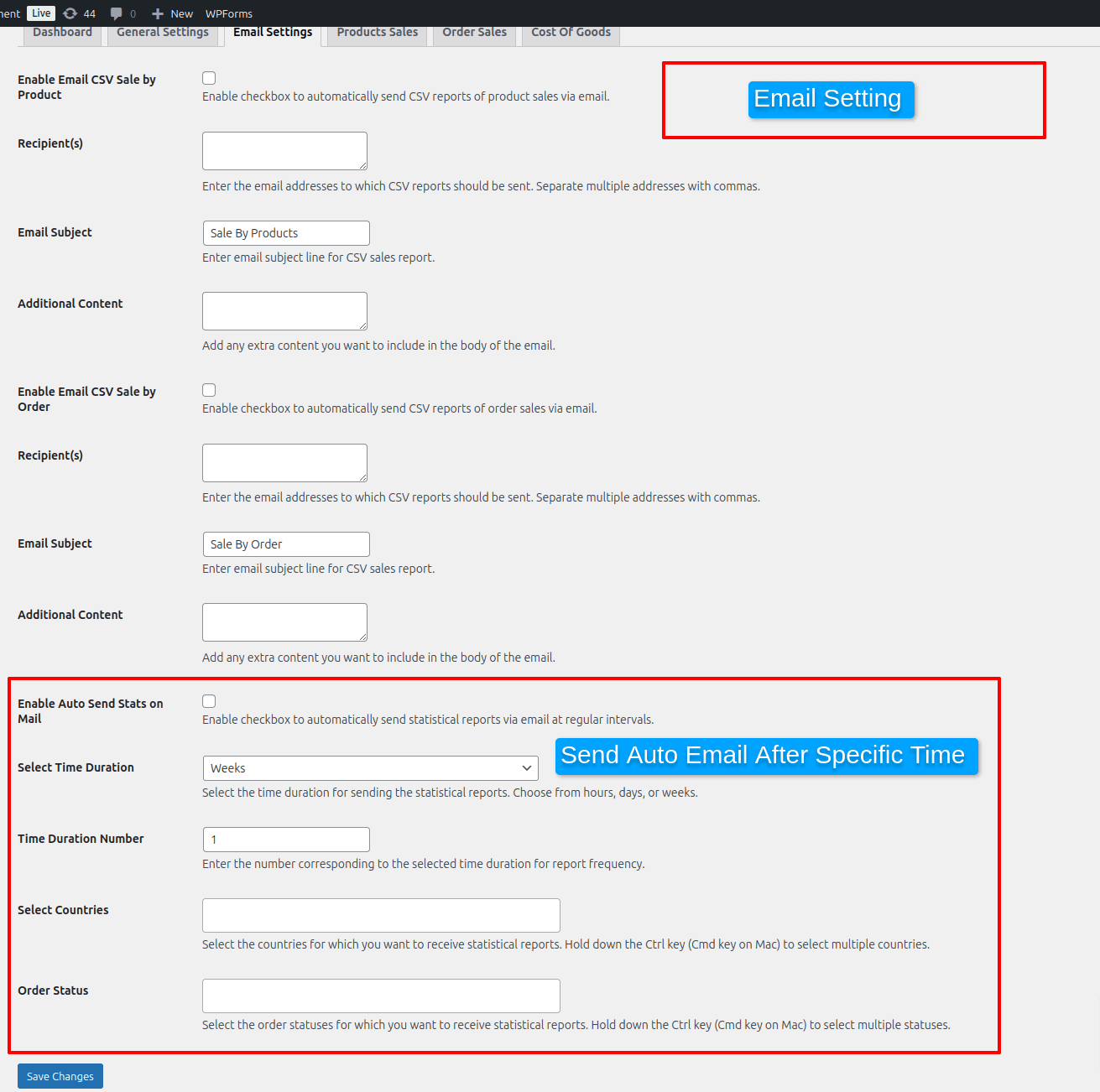
Email Settings (WP Admin > WooCommerce > Sales Report Pro > Email Settings)
- Enable Email CSV – Products: Send product sales CSV reports via email. If disabled, reports won’t be sent/received.
- Recipients (Products): Add one or multiple email addresses (separated by commas).
- Email Subject (Products): Set a custom subject line.
- Additional Content (Products): Add extra notes/content to the email.
- Enable Email CSV – Orders: Send order sales CSV reports via email. Disable to stop sending/receiving.
- Recipients (Orders): Add multiple recipient emails.
- Email Subject (Orders): Write a custom subject line.
- Additional Content (Orders): Add extra notes/content.
- Enable Auto-Send Stats: Automatically email statistical reports at set intervals. If disabled, no reports are sent.
- Frequency: Choose Hours, Days, or Weeks.
- Time Duration Number: Enter the number based on the selected frequency.
- Select Countries: Limit reports to specific countries.
- Order Status: Choose order statuses to include in reports.
View Complete Product Sales and Profit Report
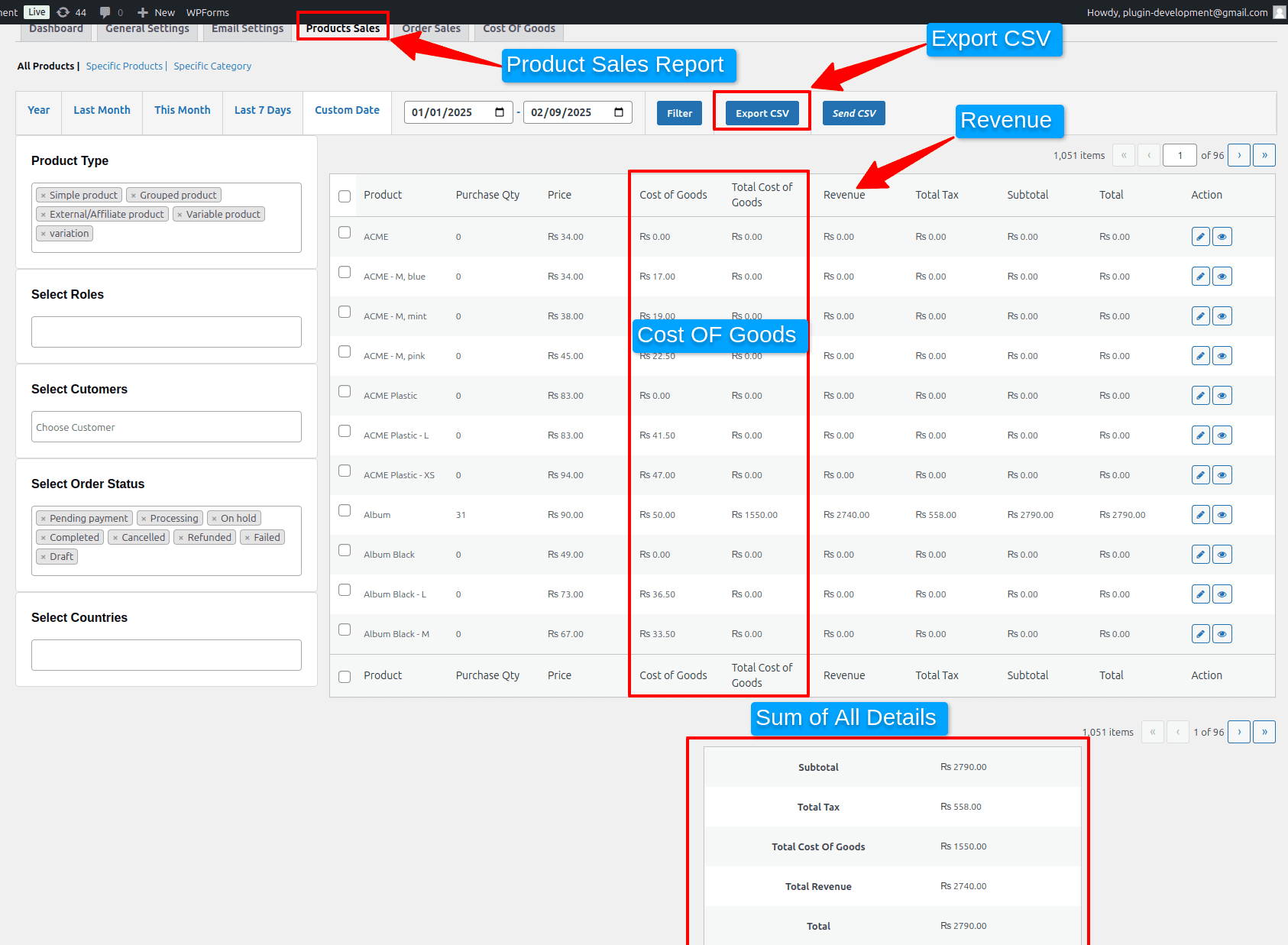
Product Sales
Go to WP Admin > WooCommerce > Sales Report Pro > Product Sales to view reports for all or specific products and categories. Apply filters to sort results, track total profit and revenue, and analyze top-selling items. Reports can be exported as CSV and sent via email.
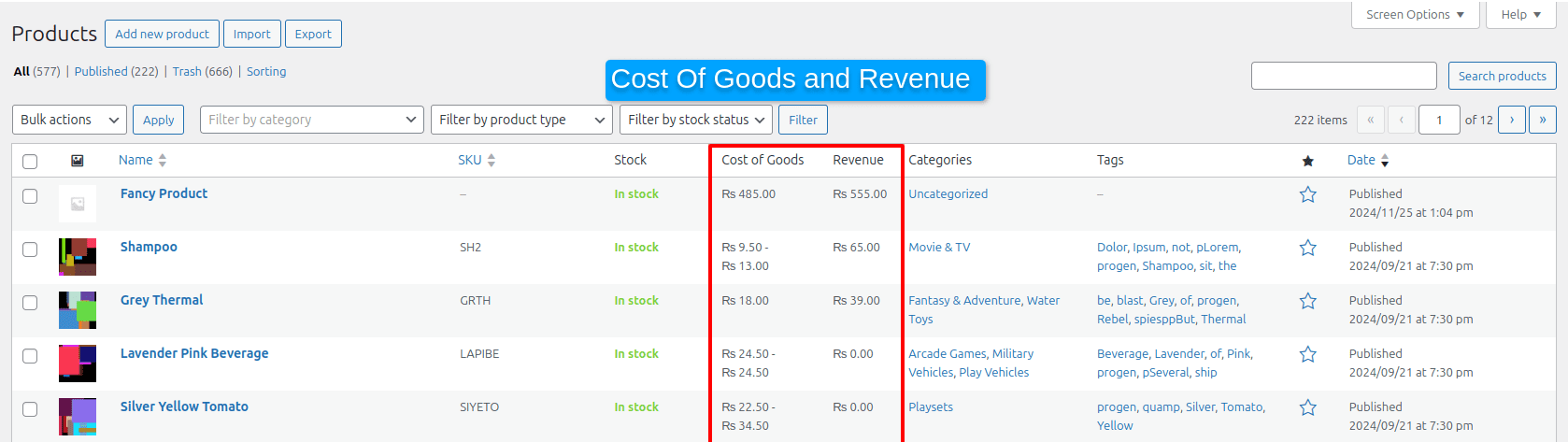
Product-Level Settings
From WP Admin > Products > All Products, view added columns such as Cost of Goods and Revenue directly in the product table
View Complete Order Sales Report
Go to WP Admin Panel > WooCommerce > Sales Report Pro and from the main menu select Order Sales. Here you can view complete order sales report for current year, or any other custom date. You can also set a specific order status or an export type to view order report according to selected countries, payment methods, user roles, and more. Admins can easily collect essential details from the table and manage total profit count to track overall store’s performance.
Order-level Settings
You can also view order sales reports from order-level settings. Go to WP Admin Panel > WooCommerce > Orders. From the table, you can view new options such as:
- Profit / Revenue
- Total Spend
Create Unlimited Rules to Calculate Exact Cost of Goods
Go to WordPress Admin Panel> WooCommerce > Sales Report Pro. Now, from the main menu, select Cost of Goods. From this tab, you can create unlimited rules to calculate total profit for products and categories in bulk. From the log, you can view created rules and their details. To create a new rule, click on Add New Rule and configure following settings:
- Add rule title: Add any unique title.
- Select products: Select products for which you want to calculate the total profit earned per month, year etc.
- Select category: Select categories for which you want to calculate the total profit earned per month, year etc
- Add amount type: choose amount type as:
- Fixed: Choose this option if you want total profit amount in fixed cost.
- Percentage: Choose this option if you want total profit amount in form of percentage
- Add amount: Add profit margin that you gain from the selected items, and once the rule is published, you can view total profit or cost of goods from the Product Sales Tab.
Changelog:
= 2025-06-15 - version 1.0.0 =
* Initial release of the plugin.
Only logged in customers who have purchased this product may leave a review.
Loading...
WPBay support
 Support by Qamar Sammi
Support by Qamar Sammi
Qamar Sammi supports this product through WPBay
Questions are handled in WPBay's private ticket system, keeping your purchase details and support conversation together.
Go to My Downloads
After purchase, open this item in My Downloads and choose Get Support.
What support includes
- Answers to product-related questions
- Help with reported bugs and issues
- Guidance for included third-party assets
What support does not include
- Customizations or new features
- Installation or setup services
Plugin
Maintenance snapshot
See recent updates, compatibility, support, and developer activity.
- Updated 248 days ago
- Developer active recently
- WPBay support available
- Demo or preview available
Snapshot updated 4 hours ago
View details Hide details
Maintenance details
This is maintenance data. It does not measure product quality or sales.
- Last update Updated 248 days ago
- Compatibility WordPress 6.8 tested, three versions behind · PHP 8.5 not marked as tested · WooCommerce 8 tested, three versions behind
- Releases 1 release in the last 12 months
- Developer activity Developer active recently
- Support No recent support tickets to measure
- Docs and demo Documentation missing · Changelog available · Demo available
Health reflects increased activity during the last 90 days.
How this snapshot works
Plugin Health
The score is out of 100 and uses data WPBay can check. Ratings, popularity, and sales are not used.
- Last update 30 points
-
Plugins receive full recency points under 30 days, then step down at 90, 180, 365, and 545 days.
- Compatibility 20 points
-
WordPress, PHP, and WooCommerce (when relevant) are scored separately. The latest two PHP lines count as current. Nearby previous versions keep most of the points.
- Current version 100%
- One version behind 75%
- Two versions behind 50%
- Three versions behind 25%
- Older or not listed 0%
- Releases 15 points
-
One release earns 10, two or three earn 13, and four or more earn 15. Each accepted product ZIP counts once; reprocessing the same upload and listing-only edits do not count.
- Developer activity 15 points
-
Based on WPBay login and dashboard activity. Exact last-login dates are never shown.
- Support 15 points
-
There are no recent WPBay tickets to measure.
- Docs and demo 5 points
-
Documentation: 2. Changelog: 1. Working demo or preview: 2.
Score ranges
- 90–100 Excellent
- 75–89 Healthy
- 60–74 Fair
- 40–59 Needs attention
- 0–39 Limited
Long gaps
WPBay also checks for long gaps between updates, developer activity, support replies, and releases. Buyers do not see this score.
- Time since update 35 points
- Last developer activity 25 points
- WordPress compatibility 15 points
- Support replies 15 points
- Fewer releases 10 points
-
Quality verified by WPBay
WPBay review- Reviewed version
- 1.0.0
- Review completed
- Reviewer
- CodeRevolution
- Review type
- Initial
No unresolved approval blocker was identified during WPBay’s proportionate review of this release. This is not a security certification or a guarantee that the product contains no defects.
-
 Future updates
-
WPBay support from Qamar Sammi
-
GPL code, proprietary assets
-
Covered by the WPBay refund policy
-
Plugin maintenance snapshot
Relevant picks
You may also like
Similar products selected by category, features, popularity and freshness.


From this seller
View seller store
More by Qamar Sammi
Explore more bestselling products from this creator.

Reviews
There are no reviews yet.