


BidMaster Auctions for WooCommerce

 Recently Updated
Well Documented
Recently Updated
Well Documented
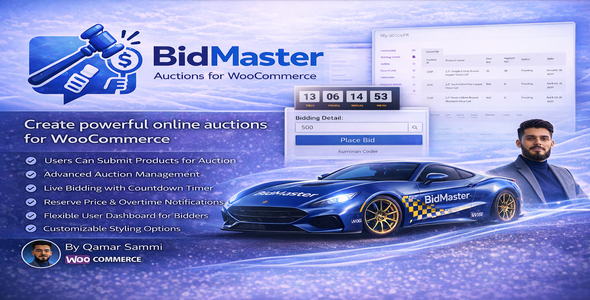
BidMaster – The Ultimate Auction Plugin for WooCommerce
BidMaster is a feature-packed auction plugin built to seamlessly integrate with your WooCommerce store. It empowers you to create dynamic, user-friendly auctions for your products with advanced features like real-time bidding, customizable dashboards, and much more. Whether you’re running small-scale or large-scale auctions, BidMaster offers all the tools you need to manage your online auction site effectively.
Key Features:
-
Advanced Auction Management: Full control over your auction setup. Define auction rules, approve users, and monitor bids from one place.
-
Live Bidding with Countdown Timer: Enhance the auction experience with live bids and countdown timers, keeping your users engaged.
-
Reserve Price & Overtime Notifications: Set a reserve price to ensure you don’t sell below a certain amount. Notifications alert users when the auction is nearing its end or in overtime.
-
Flexible User Dashboard: Bidders can easily track their bids, products, and account information from their personalized dashboard.
-
Customizable Styling Options: Tailor the design of your auction pages, including product listings and bidding controls, to match your store’s branding.
-
Comprehensive Email Alerts: Configure customizable email alerts to notify users about auction wins, losses, reminders, and other important updates.
Key Settings:
-
Dashboard: Overview of ongoing auctions, highest bids, and product performance.
-
Bidding Rules:
-
Set rules for bids such as bid increments, auction start and end dates, and auto-approval for bids.
-
Enable bid approval functionality for user bids before they are placed.
-
-
General Settings:
-
Control the display of auctions on the shop page, select the cron type (seconds or minutes), and set time for auction notifications.
-
Enable or disable email notifications for bidders and admins.
-
-
Cron Job Settings: Automate the auction-related tasks such as reminder notifications for auctions nearing their end or when a product moves into overtime.
-
Auction Page Customization:
-
Add badges to products, display countdown timers on product pages, and show auction end times for increased user interaction.
-
Style your countdown, section backgrounds, and text colors to match your website’s theme.
-
-
User Offered Product Settings:
-
Let users submit their products to be auctioned, providing fields for product details such as name, make, model, year, and photos.
-
Customize which fields are required based on your auction needs.
-
-
Users Bids Management:
-
Manage bids directly from the admin panel, approve or reject user bids, and track the status of each auction.
-
-
My Account: Bidding Details:
-
Users can see a detailed list of their bids, including the highest bid, product name, status, and bid dates.
-
-
Email Configuration:
-
Send custom email notifications to users for auction wins, losses, reminders, and more.
-
Admins can also configure automated email notifications.
-
-
Product Submission for Auction:
-
Allow users to submit products to your auction with a simple form, ensuring all required product details are collected, including product images.
-
How to Set Up BidMaster for Your WooCommerce Store:
-
Install the Plugin:
-
Go to your WooCommerce dashboard, navigate to Plugins > Add New, and upload the BidMaster plugin.
-
Activate the plugin from the plugin list.
-
-
Configure General Settings:
-
Go to BidMaster Settings and set up your general preferences. Configure your auction settings, reserve prices, and decide on whether email notifications should be sent automatically.
-
-
Set Up Auction Product Pages:
-
Customize the product pages with auction badges, countdown timers, and reserve prices for products listed in the auction.
-
-
User Product Submission:
-
Enable the product submission form so users can submit their items for auction. Configure the form fields to ensure all necessary details are provided.
-
-
Manage Bids:
-
Track, approve, or disapprove bids through the Users Bids Management section. You can easily monitor product performance and user activities.
-
-
Email Alerts:
-
Customize email notifications to ensure users are updated on their bid status, auction results, and upcoming events.
-
-
Final Adjustments:
-
After configuring everything, test the plugin by placing bids, submitting products for auction, and checking the email notifications. Ensure the countdown timers are functioning as expected.
-
Frequently Asked Questions (FAQs):
1. How do I add a product to my auction?
-
You can add auction products directly from the WooCommerce product page. Enable the auction functionality and set a reserve price for the product. Users will then be able to bid on it.
2. Can I customize the appearance of the auction page?
-
Yes, BidMaster offers customizable styling options. You can change the layout, background, text colors, countdown style, and more to match your store’s branding.
3. Can users submit their products for auction?
-
Yes, BidMaster includes a product submission form that lets users submit their products for auction. You can configure which fields are required (such as product name, year, make, model, etc.).
4. How does the bidding process work?
-
Users can place bids on auction products, with a live countdown timer showing the time remaining. You can set a minimum bid increment and a reserve price. Once the auction ends, the highest bid wins.
5. Can I send email notifications to users?
-
Yes, BidMaster allows you to send email notifications for auction wins, losses, and other auction-related events. You can customize these notifications based on your preferences.
6. Is it possible to set a reserve price for an auction?
-
Yes, you can set a reserve price for any auction product. If the highest bid does not reach the reserve price, the product will not be sold.
7. Can I manage bids and users?
-
Yes, BidMaster includes an admin panel for managing bids and users. You can approve or reject bids, view bidding details, and track auction status.
8. How can I customize the countdown timer?
-
You can customize the countdown timer to fit your needs, including changing the text color, background color, and position on the auction page.
9. Is there a way to automate bidding notifications?
-
Yes, you can set up automated email notifications for all users, including reminders, bid confirmations, and auction end notifications.
Why Choose BidMaster for WooCommerce?
BidMaster is designed to simplify and enhance the auction process, offering both admins and users an intuitive experience. Whether you’re an individual seller or a large retailer, BidMaster’s powerful features, ease of use, and flexibility will take your WooCommerce auctions to the next level.
With support for product submissions, real-time bidding, countdown timers, and customizable auction settings, BidMaster ensures a seamless experience for both you and your customers. Set it up in minutes, and start hosting professional-grade auctions today!
Changelog:
== Changelog ==
= 1.0.0 =
* New release
2 reviews for BidMaster Auctions for WooCommerce
Only logged in customers who have purchased this product may leave a review.
 Qamar Sammi supports this product
Supported
Qamar Sammi supports this product
Supported

Product support includes:
- ✔ The seller will answer product related questions
- ✔ Assistance with reported bugs and issues
- ✔ Help with included third-party assets
However, product support does not include:
- ✖ Customization services
- ✖ Installation services
-
Quality verified by wpbay.com
-
Future updates
-
Support included from Qamar Sammi


More by Qamar Sammi


bilawal ali (verified owner) –
Perfect matching with my desire
User Form of submit product for autions is superb.
thanks Developer for having a super Auction Solutions
Muhammadzahoor576@gmail.com (verified owner) –
A solid and well-built auction plugin for WooCommerce that works exactly as expected. The features are practical, the interface is clean, and bidding feels smooth and secure.