


Shelfwright Pro – Media Library Folders & AI Sorting for WordPress

 Recently Updated
Well Documented
Recently Updated
Well Documented
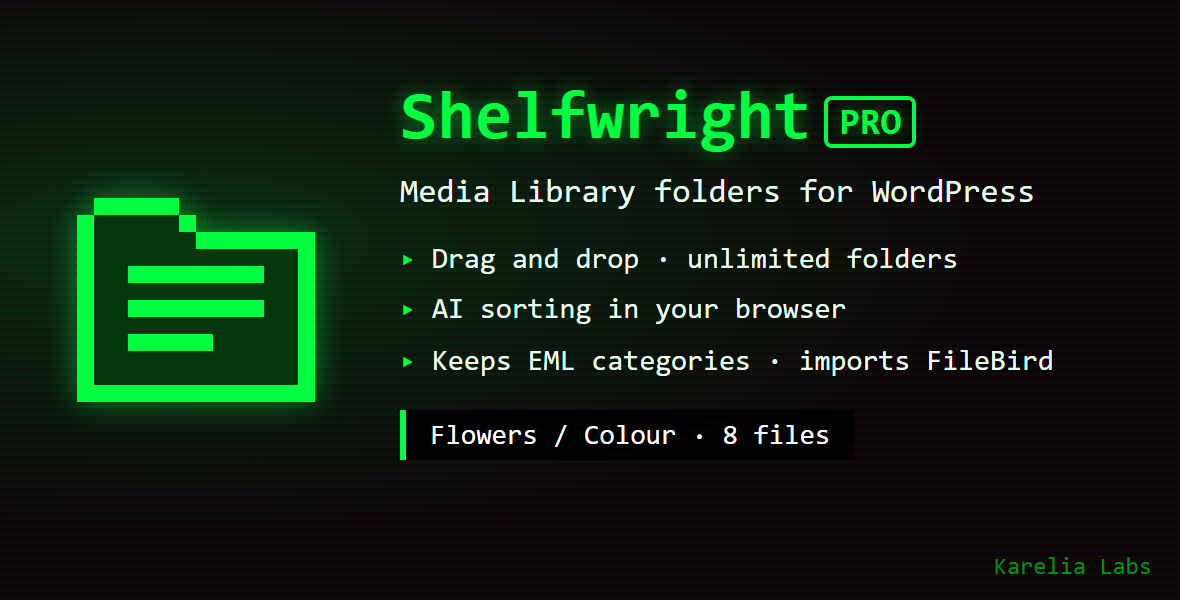
Your Media Library, in folders. The AI does the sorting.
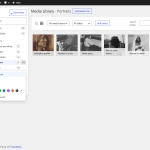
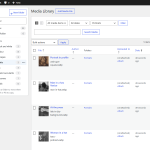
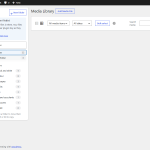
A library with thousands of images and no folders is where files go to get lost. Shelfwright Pro adds a folder tree beside the WordPress Media Library: drag files onto folders, upload straight into a folder, and let an AI put the rest where they belong.Folders that work like folders
- Drag and drop: drag files onto a folder to move them; hold Ctrl or Alt to copy. Drag several at once.
- Uploads go into the open folder.
- Unlimited folders and subfolders: rename in place, reorder and nest by dragging.
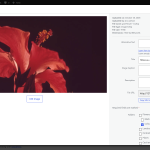
- One file, several folders, without making a copy.
- A folder filter in every media dialog of the editor, laid out for WordPress 7.
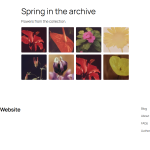
- Folder galleries: the Folder gallery block and .
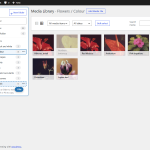
- Nothing moves on the server: folders are virtual, so URLs and links never break.
AI sorting, private by design
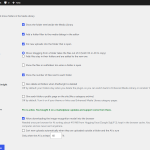
- An image-recognition model (Google SigLIP 2) compares each image with your own folder names and suggests the right folder.
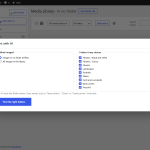
- It runs in your browser: your images are never uploaded to any service, and there is no fee per image.
- See how sure the AI is about each image, change any suggestion, and apply them in one click.
- New uploads can sort themselves when the AI is sure.
Also in Pro
- Folder colours.
- Download a folder as a ZIP file, with subfolders as directories.
Switch without risk
- Enhanced Media Library: your categories show up as folders at once, and keeps working. Nothing is converted.
- One-click import from FileBird, Real Media Library, Media Library Folders, Folders, HappyFiles, WP Media Folder, Wicked Folders and Media Library Assistant. The other plugin’s data is only read.
Built properly
Keyboard and screen reader friendly (WAI-ARIA tree). No new database tables: folders are a standard WordPress taxonomy. Tested end to end in Chrome, Edge and Firefox on WordPress 7.1 and PHP 8.3; passes the official WordPress Plugin Check.Requirements
- WordPress 6.5 or later, PHP 7.4 or later.
- AI sorting: a current Chrome, Edge or Firefox; the model (about 410 MB) is downloaded once per browser from Hugging Face after you allow it.
- ZIP downloads: the PHP zip extension (standard on almost all hosts).
Changelog:
1.0.9 (2026-10-30)
- Moving files between folders (dragging, bulk moves, the folder boxes in the attachment details and WordPress's own attachment form): the new folder is added first and read back from the database; the file leaves its old folders only when the new one is really there. A move whose new folder could not be saved keeps the file in all its old folders (also with subfolders shown) and is reported with the names of the files; a file that got the new folder but could not leave the old one is reported as such.
- The list view no longer reloads the page under a message about files that could not be changed; it offers a Reload button instead. The same for the import's final message.
- Ticking a folder that was deleted meanwhile changes nothing (the old folder is not removed) and says why. A move uses the subfolder setting of the view it was made in.
- Deleting a folder is done under the folder lock and checked afterwards; a folder whose parent was lost is shown at the top level. Renaming and moving a folder are read back.
- An upload whose chosen folder could not be set is not sorted elsewhere by the AI, and its message can no longer be taken by another request.
- Deleting the plugin with "Also delete all folders" deletes the folders before the settings.
- Documentation updated for this version: installation file names, continuing an interrupted import, the list of import failures with Retry and Finish without them, and exactly what deleting the plugin keeps and removes.
1.0.8 (2026-10-29)
- Import from other folder plugins: nothing that fails is passed over. A folder that cannot be created (or is deleted while the import runs) and every file whose folders cannot be written are kept with the error and listed in the folder tree, all of them, with a CSV download. Retry writes them again. The import counts as done only when everything is written, or when you choose "Finish without them" after seeing the list.
- Import: a database read error stops the step without moving on, the position is kept on the server and read by key, every write is checked against the file's folders afterwards, and a finished import is never run again by a late request from another tab.
- Moving, adding and removing files in bulk: the new folder is added before the old one is left, every write is checked afterwards, and files whose folders could not be saved are reported apart from files you may not change. A folder order that could not be saved completely is reported.
- Uploads into a folder that was deleted meanwhile, or whose folder could not be set, are reported instead of landing in no folder unnoticed.
- ZIP download: files that cannot be read on the server are listed in MISSING-FILES.txt inside the archive and counted in its file name; a subfolder list that cannot be read stops the download with an error.
- Automatic sorting keeps an image waiting (and says it will try again) when its folder could not be saved.
1.0.7 (2026-10-27)
- Attachment details: while a folder change is being saved, further ticks and unticks are kept as changes of their own (this folder added, that one removed) instead of as a whole selection. When the save comes back, the waiting changes are applied on top of the folders the server returned, so a folder another tab, a drag or automatic sorting added or removed in the meantime is never undone.
- A save whose answer was lost (an error page after the server had already stored it) is no longer cancelled against a later click: the server is asked which folders the file has now, a change made to the same folder in the meantime wins, and only what is still missing is sent. Retry sends only the changes that are not saved.
- Attachment details drawn again (the next file, the dialog reopened) show the folders saved last, also after files were dragged or sorted. Unticking the folder that is open takes the file out of the grid.
- Leaving the page asks first while a folder change is on its way, or when a change that could not be saved is not safely stored in the browser (storage full or blocked, or replaced by another tab).
- A folder change that the database did not take is reported instead of looking saved.
- Media → Edit no longer shows WordPress's own Folders box, which sent the whole list and took away folders given elsewhere; Shelfwright's folder boxes are there instead and save only what changed.
- The folder script now comes with every media dialog (also with the folder filter switched off, and on the front end), so each tick is saved as its own change.
- WordPress's own attachment form (where the script is not loaded) saves only what changed: every folder box has its own name (WordPress sent only the last ticked box of a shared name), the server remembers what each copy of the form saved last and saves one file at a time, so quick ticks and unticks end as the boxes show. A failed save is reported on the next screen.
- The REST route for one file's folders only takes changes (add, remove); it no longer replaces the whole list. More than 500 folder changes for one file are saved in several requests instead of being refused.
- An upload into the open folder is added to the folders the new file already has instead of replacing them.
- Renaming or moving a folder next to a folder with the same name is refused, as creating one is. [gallery] and [playlist] also find a renamed folder by its new name (it keeps its old slug).
- Import: folders are matched by their exact name, so "C++" is no longer merged into "C" (same slug). One import step runs at a time per source; a second tab or administrator is told the import is already running, and steps from two tabs continue the same import. When the server has to start its folder step over, the import follows it instead of stopping.
- Deleting the plugin keeps the folder order and colours along with the folders, unless "Also delete all folders" is ticked.
- Sort with AI: closing the dialog stops the run, with no further pages of images and no model download it no longer needs. A model download that failed no longer blocks later tries until the page is reloaded. The folder list shows each folder's whole path, the progress counts the whole list, and leaving the page while suggestions wait asks first.
- Automatic sorting and an AI apply that left the review open no longer reload the list view; a Reload notice appears instead. With "Uploads" switched off, an upload made while a folder is open is sorted as well (it is in no folder).
1.0.6 (2026-10-25)
- Unsaved folder selections and other remembered state are kept per site and per user. Two WordPress sites under one address, or two users of one browser, no longer see each other's selections; older records that did not say whose they were are discarded.
- Automatic sorting: the waiting uploads are read from the database in bounded batches with an ID cursor (at most 500 looked at and 100 returned per request), one page at a time while the queue works, and by one browser tab per site and user. Other users' uploads can't hold the list up, and every waiting image you may change is reached.
- Sort with AI: the image list is read in ID order with a cursor, authors only get images they may change, and a deleted folder is reported instead of listing the whole library.
- Attachment details: the folder checkboxes save only what you changed, so folders added or removed elsewhere meanwhile are kept; a selection that could not be saved is applied on top of the file's current folders on Retry. Without the script, WordPress's own attachment form saves the checkboxes.
- Importing from another folder plugin works in bounded batches with a progress count and reports files and folders that could not be matched.
- ZIP download: the temporary file is always removed, and an archive that cannot be written completely is reported instead of a broken download.
- Faster moves of many files, multisite-wide uninstall, Pro deactivation removes its daily licence check, plain-function sanitize callback, prepared queries in the importers.
1.0.5 (2026-10-24)
- Attachment details: a folder selection still waiting to be saved is no longer lost when you close the dialog or move to another file. Each file keeps its latest selection until it is saved; a failed save keeps the selection and shows "Folders not saved" with Retry whenever the file is opened again, also after a reload. Leaving the page while a selection is being saved asks first. All media dialogs showing the same file show the same selection.
- Folders deleted in another tab: opening one shows no files instead of the whole library, creating a subfolder in it is refused, and moving files into it reports an error and refreshes the tree.
- With "Show files in subfolders too", moving or taking files out of a folder also takes them out of its subfolders. Messages count only files that really changed.
- Dragging a folder moves only that folder, even when the tree in this tab is out of date; folder moves are sent one at a time.
- A tree refresh no longer closes a rename or new-folder box while you type.
- Uploads go into the folder that was open when the files were dropped.
- An import that stops with an error continues where it stopped.
- Automatic sorting into a folder that no longer exists reports an error and keeps the image waiting; problems are shown instead of ignored; authors only sort images they may change.
- Closing the AI review asks before discarding suggestions that have not been applied.
- ZIP download: original images instead of the "-scaled" copy, and real folder names such as "Logos & Icons".
- Uninstalling also removes the "waiting for automatic sorting" marks.
1.0.4 (2026-10-23)
- Attachment details: folder checkboxes are saved one at a time per file. Ticking and unticking quickly can no longer let an older selection overwrite the newer one; the last selection is always the one saved, and the boxes then show what was saved. If a save fails, your selection is kept, a message says it was not saved and a Retry link sends it again.
- The folder tree now says so when it cannot be refreshed, instead of silently keeping old counts.
1.0.3 (2026-10-21)
- Shortcodes: [gallery] and [playlist] that name an empty or unknown folder now show nothing. Before, WordPress fell back to the post's own attached files.
- Download as ZIP: every file keeps its own path in the archive. Subfolders whose names become the same in a file name (for example "Photos!" and "Photos?", or "Photos" and "photos") get their own folders ("Photos", "Photos-2"), a name without usable characters becomes "folder-<number>", and no file overwrites another. Folders at any depth are included.
- Folder lists (the folder filter, dropdowns and the Folder gallery block) show folders at any depth; there was a limit of 50 levels.
- Folder gallery block: if the folders cannot be loaded, the block says so and shows the error, instead of asking you to create a folder.
- Import: folders nested more than 60 levels deep keep their place under their parent.
1.0.2 (2026-10-21)
- Folder galleries: "0" (or no limit) now really shows every image in the folder, also for the [gallery folder="…"] shortcode. There is no hidden maximum.
- Large selections are put in folders in batches, so every selected file is handled. If some files cannot be changed, the message says how many and why. The server refuses requests above 2,000 files instead of cutting them.
- AI sorting: putting images in their folders works for any number of images and folders. Images that could not be moved stay in the review list, marked, so you can apply them again.
- AI sorting: each image is compared with exactly the folder list it was sent with, and the AI handles one request at a time. Automatic sorting of new uploads and a manual run with other folders can no longer mix up each other's results.
- Automatic sorting reaches every waiting upload, not only the first 100.
- Importing from another folder plugin continues until every link is done, and says where it stopped if a batch fails.
1.0.1 (2026-10-20)
- AI sorting: an image is only ticked or sorted automatically when it matches the folder name on its own (SigLIP's own sigmoid probability) and the best folder also clearly wins among the chosen folders. Unrelated images stay where they are. The review list shows "Good match", "Possible" or "No folder fits" instead of a relative percentage.
- Automatic sorting now covers images uploaded anywhere (Media Library, Add New, media dialogs, block editor). They are sorted the next time the Media Library is open; a folder chosen by hand is never changed.
- AI sorting handles libraries of any size: images are fetched page by page instead of at most 3,000.
- Folder names are cut safely also on servers without the PHP mbstring extension.
1.0.0 (2026-10-20)
- First release.
Only logged in customers who have purchased this product may leave a review.
Loading...
WPBay support
 Support by Karelia Labs
Support by Karelia Labs
Karelia Labs supports this product through WPBay
Questions are handled in WPBay's private ticket system, keeping your purchase details and support conversation together.
Go to My Downloads
After purchase, open this item in My Downloads and choose Get Support.
What support includes
- Answers to product-related questions
- Help with reported bugs and issues
- Guidance for included third-party assets
What support does not include
- Customizations or new features
- Installation or setup services
Plugin
Maintenance snapshot
See recent updates, compatibility, support, and developer activity.
- Updated 1 day ago
- Developer active recently
- WPBay support available
- WordPress 7.1 tested
Snapshot updated 9 hours ago
View details Hide details
Maintenance details
This is maintenance data. It does not measure product quality or sales.
- Last update Updated 1 day ago
- Compatibility WordPress 7.1 tested · PHP 8.3 tested, one version behind
- Releases 10 releases in the 11 days since listing
- Developer activity Developer active recently
- Support No recent support tickets to measure
- Docs and demo Documentation available · Changelog available · No demo listed
Health remained stable during the last 90 days.
How this snapshot works
Plugin Health
The score is out of 100 and uses data WPBay can check. Ratings, popularity, and sales are not used.
- Last update 30 points
-
Plugins receive full recency points under 30 days, then step down at 90, 180, 365, and 545 days.
- Compatibility 20 points
-
WordPress, PHP, and WooCommerce (when relevant) are scored separately. The latest two PHP lines count as current. Nearby previous versions keep most of the points.
- Current version 100%
- One version behind 75%
- Two versions behind 50%
- Three versions behind 25%
- Older or not listed 0%
- Releases 15 points
-
One release earns 10, two or three earn 13, and four or more earn 15. Each accepted product ZIP counts once; reprocessing the same upload and listing-only edits do not count.
- Developer activity 15 points
-
Based on WPBay login and dashboard activity. Exact last-login dates are never shown.
- Support 15 points
-
There are no recent WPBay tickets to measure.
- Docs and demo 5 points
-
Documentation: 2. Changelog: 1. Working demo or preview: 2.
Score ranges
- 90–100 Excellent
- 75–89 Healthy
- 60–74 Fair
- 40–59 Needs attention
- 0–39 Limited
Long gaps
WPBay also checks for long gaps between updates, developer activity, support replies, and releases. Buyers do not see this score.
- Time since update 35 points
- Last developer activity 25 points
- WordPress compatibility 15 points
- Support replies 15 points
- Fewer releases 10 points
-
Quality verified by WPBay
WPBay review- Reviewed version
- 1.0.9
- Review completed
- Reviewer
- CodeRevolution
- Review type
- Initial
No unresolved approval blocker was identified during WPBay’s proportionate review of this release. This is not a security certification or a guarantee that the product contains no defects.
-
 Future updates
-
WPBay support from Karelia Labs
-
Fully GPL licensed
-
Covered by the WPBay refund policy
-
Plugin maintenance snapshot
Relevant picks
You may also like
Similar products selected by category, features, popularity and freshness.



 1 month free
Reviews
There are no reviews yet.